Every year, millions of Nigerian students register for the Joint Admissions and Matriculation Board examination with hopes of gaining admission into universities, polytechnics, and colleges of education.
After registration and examinations, many candidates often struggle with one important issue: accessing the JAMB e-facility portal successfully.
Some students forget their passwords. Others cannot check their admission status, print admission letters, or access JAMB CAPS properly. Many first-time candidates also become confused because of fake websites and incorrect login procedures.
The truth is that the JAMB e-facility portal is one of the most important platforms every UTME and Direct Entry candidate must understand.
From checking admission status to printing result slips and correcting registration details, the portal plays a major role throughout the admission process.
If you have been searching for:
- JAMB e-facility portal login
- how to login to JAMB portal
- JAMB CAPS login
- how to check admission status on JAMB portal
- JAMB portal login guide
this detailed guide will help you.
In this article, you will learn how to access the JAMB e-facility portal successfully, recover forgotten passwords, check admission status, print admission letters, use JAMB CAPS, and solve common portal login problems.
What Is the JAMB E-Facility Portal?
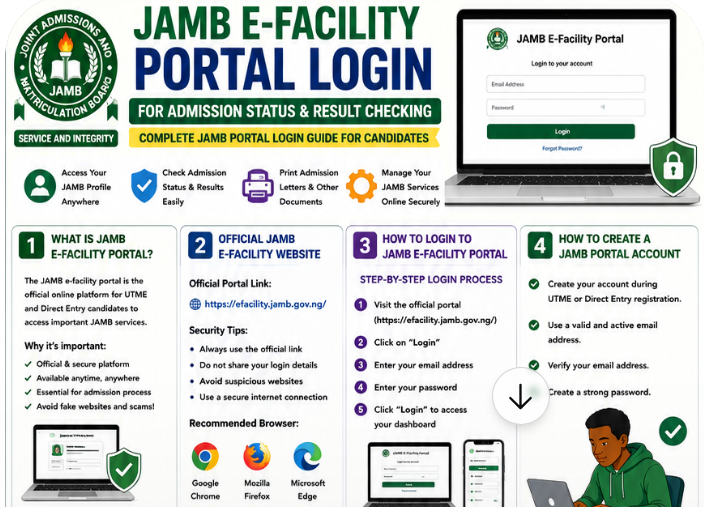
The JAMB e-facility portal is the official online platform created by JAMB for UTME and Direct Entry candidates.
It allows students to access important examination and admission services online.
Why the JAMB E-Facility Portal Is Important
The portal helps candidates:
- Check admission status
- Access JAMB CAPS
- Print admission letters
- Print original result slips
- Upload O’Level results
- Correct personal information
- Change institution or course
Without the portal, many important admission processes would become difficult.
Official Online Platform for Candidates
The e-facility portal is the official JAMB online platform for managing candidate records and admission activities.
Students should avoid fake websites claiming to offer JAMB login services.
Many scam websites steal candidate login details and personal information.
Important for Both UTME and Direct Entry Candidates
Whether you are:
- a UTME candidate,
- Direct Entry applicant,
- or admission seeker,
the JAMB e-facility portal remains essential throughout your admission journey.
Official JAMB E-Facility Portal Website
One major mistake candidates make is visiting fake JAMB websites.
Using the wrong website can expose your personal details to scammers.
Official JAMB Portal Link
The official JAMB portal is:
https://efacility.jamb.gov.ng/
Always confirm the web address carefully before entering your details.
Why Using the Correct Link Matters
Using fake websites can lead to:
- stolen passwords,
- lost admission information,
- fake payment requests,
- and profile compromise.
Security Tips for Students
Before logging in:
- Confirm the URL properly
- Avoid suspicious links from WhatsApp groups
- Use secure internet connections
- Avoid public computers when possible
Recommended Browser
For smoother access, many students use:
- Google Chrome
- Microsoft Edge
- Mozilla Firefox
Google Chrome usually works well for JAMB portal login.
How to Login to JAMB E-Facility Portal
Many first-time candidates worry about how to login to the JAMB portal properly.
Fortunately, the process is simple when done correctly.
Step-by-Step Login Process
Step 1: Visit the Official JAMB Portal
Open your browser and visit:
https://efacility.jamb.gov.ng/
Step 2: Click “Login”
On the homepage, locate the login section.
Step 3: Enter Your Email Address
Use the same email address linked to your JAMB registration.
Step 4: Enter Your Password
Type your correct password carefully.
Passwords are case-sensitive.
Step 5: Click Login
After entering your details correctly, click the login button to access your dashboard.
Mobile and Laptop Login Tips
Students can access the JAMB portal using:
- Android phones
- iPhones
- Laptops
- Desktop computers
However, laptops often provide smoother navigation for CAPS activities and document printing.
Screenshot Placeholder Suggestions for Website Upload
You can later add screenshots showing:
- JAMB login homepage
- Dashboard interface
- CAPS admission page
- Password recovery page
These visuals improve user experience and SEO engagement.
How to Create a JAMB E-Facility Account
Candidates without accounts must first create a JAMB profile before accessing the portal.
Account Registration Process
Students usually create accounts during:
- UTME registration
- Direct Entry registration
The process requires:
- Active email address
- Phone number
- Personal information
Importance of Using Active Email Addresses
Many candidates lose access to their profiles because they used inactive email addresses.
Also read: Common Mistakes Students Make During UTME
Always use:
- personal email accounts,
- accessible passwords,
- and valid phone numbers.
Password Creation Tips
Create passwords that include:
- letters,
- numbers,
- and symbols.
Avoid weak passwords like:
- 123456
- password
- your first name
Strong passwords improve account security.
Services Available on the JAMB E-Facility Portal
The JAMB portal offers several important services for candidates.
Admission Status Checking
Students can monitor admission progress directly on the portal.
JAMB CAPS Acceptance
Candidates can:
- accept admission,
- reject admission,
- or monitor CAPS updates.
Result Checking
The portal allows candidates to:
- print original results,
- verify examination performance,
- and track registration details.
Admission Letter Printing
Candidates can print official admission letters required for school clearance.
Correction of Data
Students can correct:
- names,
- date of birth,
- gender,
- institution choices,
- and subject combinations.
Change of Course and Institution
The portal also supports institution and course modification.
How to Check Admission Status on JAMB Portal
Checking admission status is one of the most important reasons students use the JAMB portal.
Step-by-Step Guide
Step 1: Login to Your Portal
Access your dashboard using your email and password.
Step 2: Click “Check Admission Status”
Locate the admission section.
Step 3: Select Examination Year
Choose the correct examination year.
Step 4: Enter Registration Number
Input your JAMB registration number correctly.
Step 5: View Admission Result
Your admission status will appear.
Understanding Admission Messages
Students may see different messages such as:
“Admission in Progress”
This means the institution is still processing admission.
“Not Admitted”
This usually means admission has not yet been offered.
“Congratulations”
This confirms admission has been offered successfully.
Students should check regularly because admission updates often change.
How to Accept or Reject Admission on JAMB CAPS
JAMB CAPS stands for:
Central Admission Processing System
It is the platform institutions use to process admissions.
Why JAMB CAPS Matters
Without CAPS acceptance, admission may remain incomplete.
Steps to Accept Admission
- Login to JAMB portal
- Open CAPS
- Check admission status
- Click “Accept Admission”
Why Students Should Accept Quickly
Delaying admission acceptance may create problems during school clearance.
How to Print JAMB Admission Letter
The JAMB admission letter is an official document proving admission approval.
Why the Admission Letter Is Important
Students need the admission letter for:
- school registration,
- clearance,
- hostel processing,
- and scholarship applications.
How to Print It
- Login to JAMB portal
- Select “Print Admission Letter”
- Complete payment if required
- Download and print the document
Keep Multiple Copies
Students should print several copies for future use.
How to Recover Forgotten JAMB Portal Password
Forgotten passwords are common among candidates.
Fortunately, recovery is simple. All you need to do to quickly and easily recover your Jamb e-facility portal login password is to follow the below steps according.
Password Recovery Steps
Step 1: Visit the Login Page
Go to the official portal.
Step 2: Click “Forgot Password”
Locate the recovery option.
Step 3: Enter Registered Email Address
Use the same email linked to your JAMB account.
Step 4: Check Your Email Inbox
JAMB will send password reset instructions.
Step 5: Create a New Password
Choose a strong but memorable password.
Important Password Recovery Tips
Check Spam Folder
Sometimes reset emails enter spam folders.
Use Strong Passwords
Avoid simple passwords that can be guessed easily.
Save Passwords Securely
Write passwords in secure locations for future access.
Common Problems Students Face During JAMB Portal Login
Many students experience login problems occasionally.
Wrong Password
Typing errors often prevent successful login.
Always confirm:
- capital letters,
- symbols,
- and spacing.
Invalid Email Address
Using incorrect registration emails is another common problem.
Slow Website Loading
Heavy traffic periods may slow the portal temporarily.
Browser Problems
Outdated browsers sometimes cause login issues.
Portal Maintenance
JAMB occasionally performs system maintenance, which may temporarily affect access.
Practical Troubleshooting Tips
Students should:
- refresh pages,
- switch browsers,
- clear browser cache,
- or try again later.
Most login problems are temporary.
Security Tips for JAMB Portal Users
Protecting your JAMB profile is extremely important.
Avoid Sharing Passwords
Never share login details publicly.
Be Careful With Cybercafes
Some cybercafes store user passwords unknowingly.
Use Strong Passwords
Strong passwords reduce hacking risks.
Avoid Fake Agents
Some fake agents promise admission assistance while stealing candidate details.
Students should rely only on official JAMB services.
Important Things Students Can Do on JAMB Portal
The portal supports many useful student activities.
Print Examination Slips
Students can print CBT examination slips directly online.
Correct Personal Data
Errors involving:
- names,
- gender,
- or birth dates
can often be corrected through the portal.
Upload O’Level Results
Candidates can upload WAEC, NECO, or NABTEB results.
Monitor Admission Progress
Students should regularly monitor CAPS updates.
Best Devices and Browsers for JAMB Portal Login
Students often ask whether phones or laptops work better.
Mobile Phones
Phones work well for:
- admission checks,
- quick updates,
- and basic login activities.
Laptops and Desktop Computers
Laptops often provide better navigation for:
- CAPS access,
- document printing,
- and detailed profile updates.
Stable Internet Connection Matters
Poor internet often causes loading issues.
Browser Recommendations
Google Chrome usually works smoothly for JAMB portal activities.
Students should also:
- clear browser cache,
- update browsers regularly,
- and avoid suspicious extensions.
Common JAMB Portal Mistakes Students Should Avoid
Several mistakes create avoidable login problems.
Using Wrong Email Addresses
Some candidates forget the email linked to registration.
Sharing Passwords Publicly
This increases security risks greatly.
Ignoring CAPS Updates
Students should monitor CAPS regularly during admission periods.
Using Fake Websites
Fake portals remain dangerous for candidates.
Always confirm official links carefully.
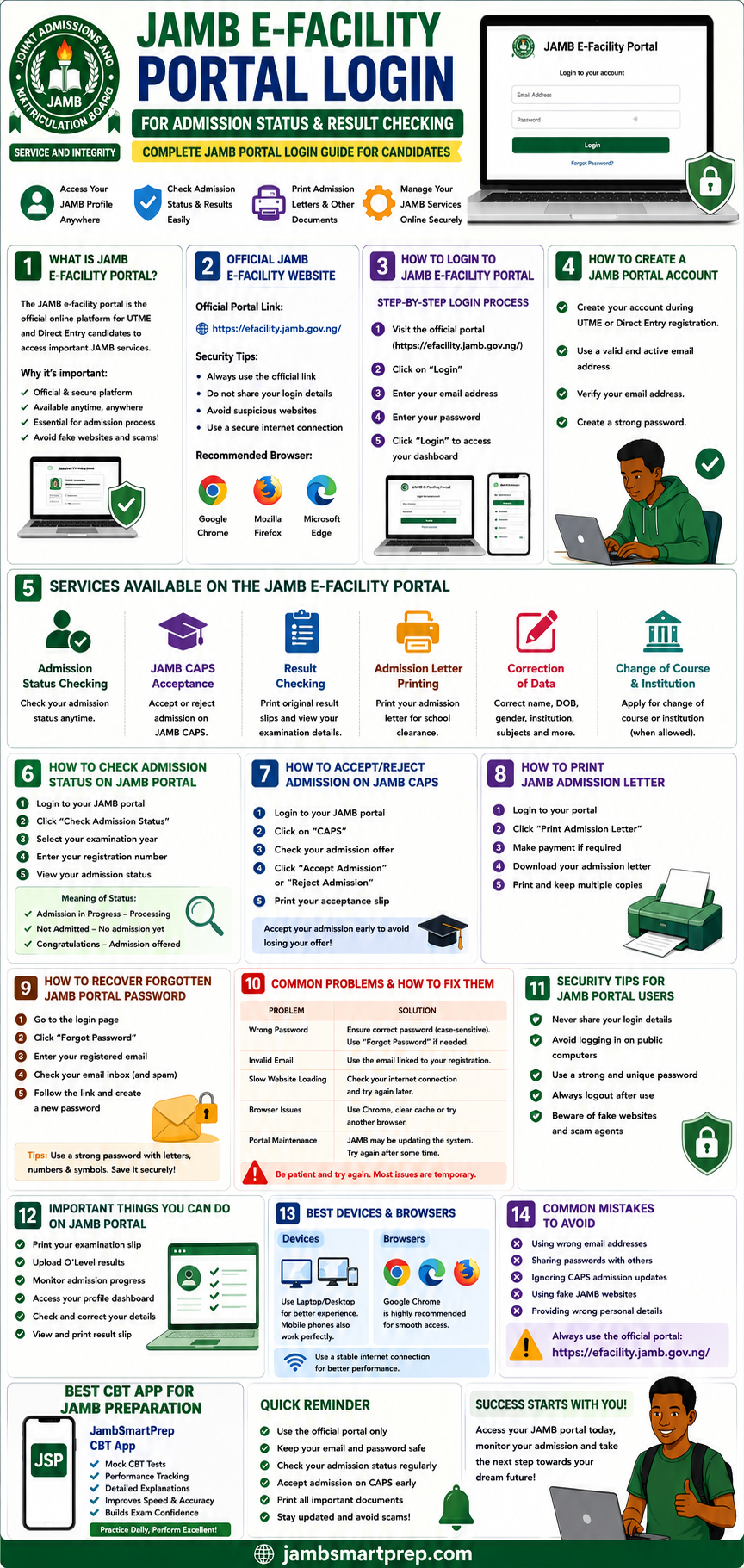
📘 Quick Guide to JAMB E-Facility Portal Login
JAMB Login Steps
✅ Visit official portal
✅ Enter email address
✅ Enter password
✅ Access dashboard
Password Recovery Process
✅ Click “Forgot Password”
✅ Enter registered email
✅ Check inbox
✅ Reset password
JAMB CAPS Admission Steps
✅ Login to CAPS
✅ Check admission status
✅ Accept admission
✅ Print admission letter
Portal Security Tips
✅ Avoid fake websites
✅ Protect passwords
✅ Use secure devices
✅ Avoid sharing login details
Common Login Errors
❌ Wrong password
❌ Incorrect email
❌ Slow internet
❌ Browser issues
Frequently Asked Questions About JAMB Portal Login
What is the JAMB e-facility portal?
It is the official online platform for managing JAMB services such as admission checks, CAPS access, and result printing.
How do I login to my JAMB profile?
Visit the official portal and enter your registered email address and password.
Can I login to JAMB portal with my registration number?
No. Login usually requires your registered email and password.
How do I recover my JAMB password?
Use the “Forgot Password” option on the login page and follow email instructions.
How do I check admission status on JAMB CAPS?
Login to your portal, open CAPS, and check your admission section.
Why can’t I access my JAMB portal?
Possible reasons include incorrect passwords, wrong emails, poor internet, or portal maintenance.
How do I print my JAMB admission letter?
Login to the portal, select “Print Admission Letter,” complete payment if required, then download and print.
Is the JAMB portal free to use?
Basic access is free, although some services require payment.
Can I use my phone to access the JAMB portal?
Yes. Most portal services work on mobile devices.
What should I do if my portal details are incorrect?
Visit an accredited CBT centre or use approved correction services on the portal.
What is the official JAMB portal link?
The official portal is:
https://efacility.jamb.gov.ng/
Can cybercafes access my JAMB profile?
Yes, especially if passwords are saved on public systems.
Always logout properly after use.
How do I upload O’Level results on JAMB portal?
Candidates can upload results through approved CBT centres linked to JAMB services.
How long does JAMB admission processing take?
Admission processing varies by institution and can continue for several weeks or months.
Can I change my course on the JAMB portal?
Yes. JAMB allows change of course and institution during approved periods.
What happens if I forget my portal email?
Students may need assistance from JAMB support or accredited CBT centres.
Is JAMB CAPS compulsory for admission?
Yes. CAPS acceptance is important for confirming admission officially.
How can I know if I have been admitted?
Check your admission status regularly through CAPS and the e-facility portal.
Can I print my result from the e-facility portal?
Yes. Original result slips can be printed through the portal.
What browser works best for JAMB login?
Google Chrome works well for most JAMB portal activities.
Conclusion
Understanding how the JAMB e-facility portal works is extremely important for every Nigerian student preparing for admission.
From checking admission status to accessing CAPS and printing admission letters, the portal remains one of the most important tools throughout the admission process.
Students should protect their login details carefully, avoid fake websites, and monitor admission updates regularly.
Proper understanding of the portal can help candidates avoid unnecessary stress and confusion during admission periods.
Have you checked your JAMB CAPS admission status yet? Share this guide with another UTME candidate and bookmark this article for future JAMB portal access.
