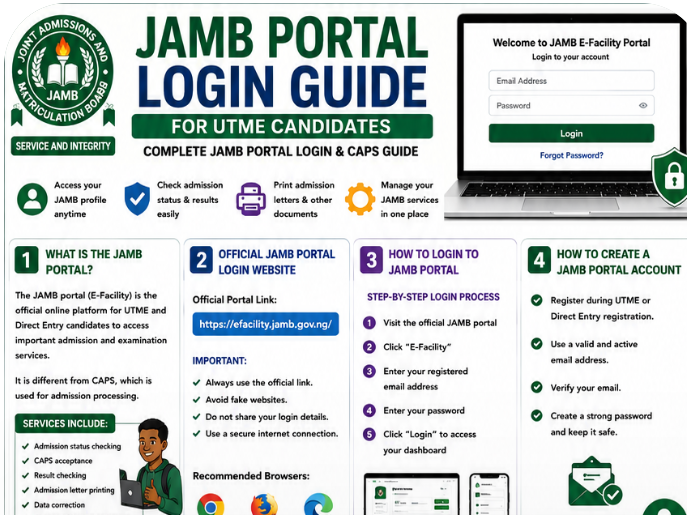
Many Nigerian students become confused when trying to access the Joint Admissions and Matriculation Board portal after registration or after writing UTME. Some forget their passwords, while others struggle to check admission status, access CAPS, or print important documents.
If you are preparing for admission into a university, polytechnic, or college of education in Nigeria, understanding how the JAMB portal works is extremely important.
The JAMB portal is not only for registration. It also helps candidates:
- Check admission status
- Accept admission on CAPS
- Print admission letters
- Upload O’Level results
- Print original result slips
- Correct registration mistakes
- Change institution or course
Unfortunately, many first-time candidates do not know how to login to the JAMB portal successfully or how to avoid common portal errors.
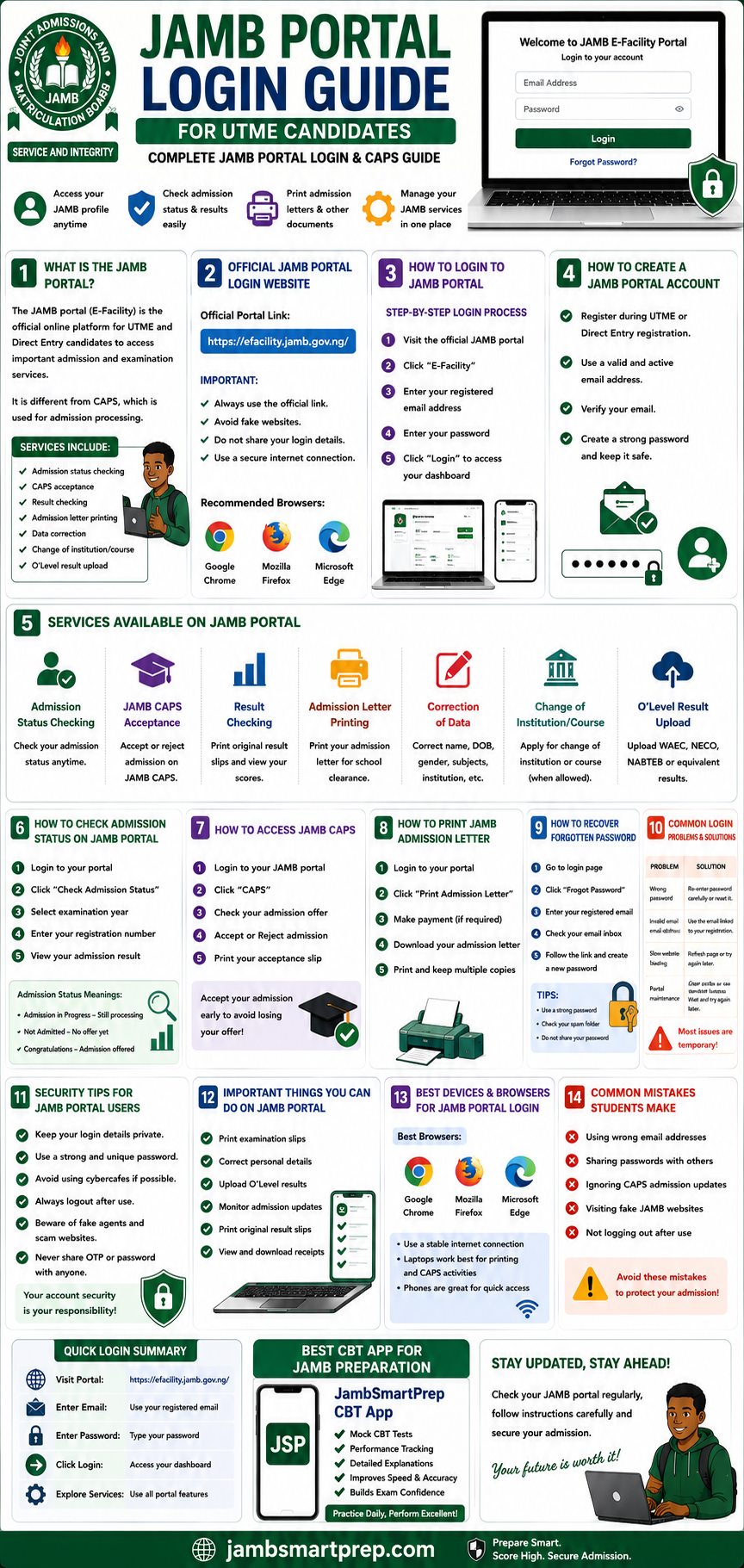
This detailed guide will walk you through everything you need to know about JAMB portal login, CAPS access, password recovery, admission checking, and important portal security tips.
What Is the JAMB Portal?
The JAMB portal is the official online platform created by JAMB for UTME and Direct Entry candidates.
It allows students to manage their admission and examination activities online.
Many students also call it the:
- JAMB e-facility portal
- JAMB login portal
- JAMB candidate portal
- JAMB admission portal
Difference Between JAMB Portal and CAPS
One area that confuses many students is the difference between the regular JAMB portal and CAPS.
JAMB Portal
This is the main dashboard where candidates can:
- Check results
- Print slips
- Correct data
- Upload O’Level results
- Access other services
JAMB CAPS
CAPS stands for Central Admission Processing System.
It is the section where students:
- Check admission offers
- Accept admission
- Reject admission
- Monitor admission progress
Both platforms are connected and very important during the admission process.
Why the Portal Is Important for Students
Whether you are:
- a UTME candidate,
- Direct Entry applicant,
- or admission seeker,
you will likely use the JAMB portal several times before gaining admission.
Official JAMB Portal Login Website
Students should be careful while searching online because many fake websites now imitate the official JAMB portal.
Official JAMB Portal Login Link
The official JAMB e-facility portal is:
https://efacility.jamb.gov.ng/
Always confirm the website address carefully before entering your login details.
Why Using the Correct Portal Matters
Fake websites can:
- steal passwords,
- collect personal details,
- request fake payments,
- or compromise your admission process.
Safe Browsing Tips for Students
Before logging in:
- Confirm the URL properly
- Avoid suspicious WhatsApp links
- Use trusted internet connections
- Avoid random pop-up websites
Many Nigerian students lose portal access because of fake login pages.
How to Login to JAMB Portal
The JAMB portal login process is simple when done correctly.
Step-by-Step JAMB Portal Login Process
Step 1: Visit the Official Portal
Open your browser and visit:
https://efacility.jamb.gov.ng/
Step 2: Click “Login” or “E-Facility”
Locate the login area on the homepage.
Step 3: Enter Your Registered Email
Use the same email linked to your JAMB registration.
Step 4: Enter Your Password
Type your password carefully.
Passwords are case-sensitive.
Step 5: Click Login
After entering your details correctly, click the login button.
You will then access your JAMB profile dashboard.
Mobile Login Tips
Many students now access the JAMB portal using smartphones.
Phones work well for:
- admission checks,
- CAPS updates,
- result viewing,
- and profile monitoring.
However, some advanced tasks work better on laptops.
Laptop Login Recommendations
Laptops and desktop computers are usually better for:
- printing admission letters,
- CAPS navigation,
- uploading documents,
- and correcting data.
Google Chrome is often the smoothest browser for portal activities.
How to Create a JAMB Portal Account
Students who have not created accounts must first register properly.
JAMB Portal Account Registration Process
During UTME registration, candidates usually provide:
- email address,
- phone number,
- and personal details.
JAMB then creates a profile linked to the candidate’s registration.
Importance of Using Active Email Addresses
One major mistake students make is using inaccessible emails.
Always use:
- active email accounts,
- personal phone numbers,
- and memorable passwords.
Many candidates later struggle because they cannot access their registration email.
Password Setup Tips
Create passwords that contain:
- letters,
- numbers,
- and symbols.
Avoid weak passwords like:
- 123456
- password
- your surname only
Strong passwords improve account security.
Services Available on JAMB Portal
The JAMB portal provides several important services for Nigerian students.
Admission Status Checking
Students can monitor admission progress directly online.
JAMB CAPS Acceptance
Candidates can:
- accept admission,
- reject admission,
- or monitor institution updates.
Result Checking
Students can:
- print original results,
- verify scores,
- and monitor examination records.
Admission Letter Printing
The portal allows candidates to print official admission letters.
Correction of Data
Students can correct:
- names,
- gender,
- date of birth,
- subject combinations,
- and institution choices.
Change of Institution or Course
JAMB also allows institution and course changes during approved periods.
O’Level Result Upload
Students can upload:
- WAEC,
- NECO,
- NABTEB,
- or equivalent results.
How to Check Admission Status on JAMB Portal
Checking admission status is one of the most important portal activities.
Step-by-Step Guide
Step 1: Login to Your Portal
Access your profile dashboard.
Step 2: Click “Check Admission Status”
Locate the admission section.
Step 3: Select Examination Year
Choose the correct examination year.
Step 4: Enter Registration Number
Input your JAMB registration number carefully.
Step 5: View Admission Status
Your admission result will appear immediately.
Understanding Admission Messages
Students usually see one of these messages:
“Admission in Progress”
This means your admission is still being processed.
“Not Admitted”
This means no admission offer has been made yet.
“Congratulations”
This confirms admission has been offered successfully.
Students should check CAPS regularly because admission updates change frequently.
How to Access JAMB CAPS
JAMB CAPS remains one of the most important admission platforms.
What Is JAMB CAPS?
CAPS stands for:
Central Admission Processing System
It is the platform schools use to process admissions.
Why CAPS Is Important
Without CAPS acceptance:
- admission may remain incomplete,
- school clearance may become difficult,
- and admission records may not update properly.
Steps to Access CAPS
- Login to your JAMB portal
- Open CAPS section
- Check admission updates
- Accept or reject admission
Accepting or Rejecting Admission
Students offered admission should:
- click “Accept Admission”
- print admission details afterward
Ignoring CAPS updates can delay admission processing.
How to Print JAMB Admission Letter
The admission letter is an official document confirming your admission.
Why Admission Letters Are Important
Schools often require admission letters during:
- screening,
- registration,
- hostel processing,
- and clearance.
How to Print Admission Letter
- Login to JAMB portal
- Select “Print Admission Letter”
- Complete payment if required
- Download and print the document
Students should print multiple copies for safety.
How to Recover Forgotten JAMB Portal Password
Forgotten passwords are very common among UTME candidates.
Fortunately, password recovery is simple.
Password Recovery Steps
Step 1: Visit Login Page
Open the official portal.
Step 2: Click “Forgot Password”
Locate the recovery option.
Step 3: Enter Registered Email
Input the email linked to your JAMB profile.
Step 4: Check Your Inbox
JAMB will send password reset instructions.
Step 5: Create a New Password
Choose a strong but memorable password.
Important Password Recovery Tips
Check Spam Folder
Reset emails sometimes enter spam folders.
Save Passwords Securely
Store passwords safely to avoid future login problems.
Avoid Sharing Passwords
Never give portal details to strangers.
Common JAMB Portal Login Problems and Solutions
Many students experience portal login issues.
Below are common problems and solutions.
Wrong Password
Typing mistakes are very common.
Solution
- Re-enter carefully
- Confirm capital letters
- Use password recovery if necessary
Invalid Email Address
Some students forget the email linked to registration.
Solution
Use the exact email submitted during JAMB registration.
Slow Website Loading
Portal traffic becomes heavy during admission periods.
Solution
- Refresh the page
- Try again later
- Use stronger internet connection
Browser Issues
Old browsers sometimes affect portal access.
Solution
- Update browser
- Clear cache
- Use Google Chrome
Portal Maintenance
JAMB occasionally updates the system temporarily.
Solution
Wait patiently and try again later.
Security Tips for JAMB Portal Users
Protecting your JAMB account is extremely important.
Avoid Sharing Login Details
Never share passwords publicly.
Be Careful With Cybercafes
Some cybercafes store user information unknowingly.
Always logout completely after use.
Use Strong Passwords
Strong passwords reduce hacking risks.
Avoid Fake Agents
Some fake agents claim they can “upgrade” admission chances.
Most of these offers are scams.
Important Things Students Can Do on JAMB Portal
The JAMB portal supports several useful student activities.
Print Examination Slips
Students can print CBT slips online.
Correct Personal Data
Errors involving names, gender, or birth dates can often be corrected.
Upload O’Level Results
Candidates can upload WAEC or NECO results through approved centres.
Monitor Admission Updates
Students should monitor CAPS frequently.
Print Original Result Slips
Original results may be required for admission processing.
Best Devices and Browsers for JAMB Portal Login
Students often ask whether phones or laptops work better.
Mobile Phones
Phones are suitable for:
- quick login,
- admission checks,
- and portal updates.
Laptops and Desktop Computers
Laptops provide better experience for:
- CAPS activities,
- printing,
- and corrections.
Recommended Browsers
The best browsers for JAMB login include:
- Google Chrome
- Microsoft Edge
- Mozilla Firefox
Google Chrome usually performs best.
Common Mistakes Students Make During JAMB Portal Login
Several mistakes create unnecessary problems for students.
Using Wrong Email Addresses
Always use the email linked to registration.
Sharing Passwords Publicly
This increases security risks greatly.
Ignoring CAPS Updates
Admission updates can change regularly.
Visiting Fake Websites
Always confirm the official portal address.
📘 Quick Guide to JAMB Portal Login
JAMB Portal Login Steps
✅ Visit official portal
✅ Enter registered email
✅ Enter password
✅ Access dashboard
JAMB CAPS Access Guide
✅ Login to CAPS
✅ Check admission status
✅ Accept admission
✅ Print admission letter
Password Recovery Process
✅ Click “Forgot Password”
✅ Enter registered email
✅ Check inbox
✅ Reset password
Security Tips
✅ Protect login details
✅ Avoid fake websites
✅ Use secure devices
✅ Logout after use
Common Login Problems
❌ Wrong password
❌ Invalid email
❌ Slow internet
❌ Browser issues
Frequently Asked Questions About JAMB Portal Login
What is the official JAMB portal?
The official portal is:
https://efacility.jamb.gov.ng/
How do I login to my JAMB profile?
Visit the official portal and enter your registered email and password.
Can I login with my registration number?
No. Login usually requires your registered email address and password.
How do I recover my JAMB password?
Use the “Forgot Password” option on the portal login page.
How do I check admission status on CAPS?
Login to CAPS through your portal dashboard and check admission updates.
Why can’t I access my portal?
Possible reasons include:
- wrong password,
- invalid email,
- browser problems,
- or portal maintenance.
How do I print my admission letter?
Login to the portal and select “Print Admission Letter.”
Is the JAMB portal free?
Basic portal access is free, although some services require payment.
Can I use my phone for JAMB login?
Yes. Smartphones work for most portal activities.
What should I do if my details are incorrect?
Visit an accredited CBT centre for correction assistance.
What is the official JAMB portal login link?
The official portal is:
https://efacility.jamb.gov.ng/
Can cybercafes access my JAMB profile?
Yes, especially if passwords are saved accidentally.
Always logout completely.
How do I upload O’Level results?
Students usually upload O’Level results through accredited CBT centres.
Can I change my institution on the portal?
Yes. JAMB allows course and institution changes during approved periods.
Is JAMB CAPS compulsory?
Yes. CAPS acceptance is important for admission confirmation.
How can I know if I have been admitted?
Check your CAPS admission status regularly.
Can I print my result online?
Yes. Original result slips can be printed through the portal.
What browser works best for JAMB login?
Google Chrome works smoothly for most portal activities.
What should I do if the portal is slow?
Refresh the page, clear browser cache, or try again later.
How often should I check CAPS?
Students should check CAPS regularly during admission periods.
Best CBT App for JAMB Preparation
Students preparing for UTME can improve their CBT familiarity through regular practice.
One helpful platform many candidates use is:
JambSmartPrep CBT App
Benefits of JambSmartPrep CBT App
- Mock CBT examinations
- Speed improvement
- Performance tracking
- Weak subject identification
- Daily practice opportunities
Regular CBT practice helps students feel more confident during the actual examination.
Conclusion
Understanding how the JAMB portal works is extremely important for every Nigerian student seeking admission.
From checking admission status to printing admission letters and accessing CAPS, the portal remains a major part of the admission process.
Students should protect their login details carefully, avoid fake websites, and monitor CAPS updates regularly.
With proper understanding and careful use, the JAMB portal becomes much easier to navigate.
Have you checked your JAMB CAPS admission status yet? Share this guide with another UTME candidate and bookmark this article for future JAMB portal access.
