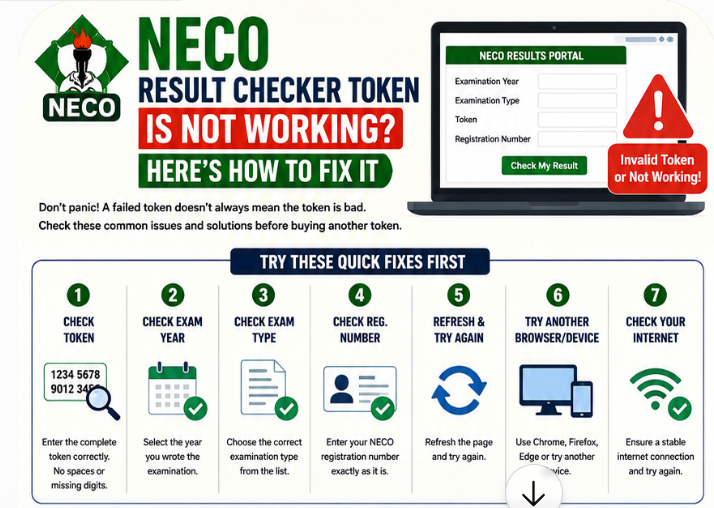
Is your NECO result checker token not working? Welcome to Jambsmartprep.com, your no. 1 guide for Jamb, WAEC, NECO and admissions. In today’s post, we will be covering virtually everything you need to know about How to fix NECO result checker token is not working.
Yes, during the course of this online guide, you will learn why NECO tokens fail and how to fix invalid tokens, payment problems and result errors. All you need to do to get what you want is to keenly follow all the instructions outlined in this post.
Interestingly, if your NECO result checker token is not working, do not rush to buy another token. A rejected token does not always mean the token itself is bad. The problem could be caused by an incorrect token, wrong examination year, wrong examination type, registration number error, payment issue, browser problem or a temporary problem with the result portal.
The good news is that most of these problems can be checked one after another.
The official NECO Results Portal currently asks candidates to select their examination year and examination type, enter their token and registration number, and then click the button to check the result. It also provides an option to purchase a token and lists su*****@******ov.ng as its support email.
In this guide, you will learn why your NECO result checker token is not working, what the different token errors mean, what to check before buying another token, and what to do if payment was successful but the token still fails.
NECO Result Checker Token Is Not Working? Try These Fixes First
Before assuming that your token is invalid, go through the following checks.
These simple steps can resolve the problem when the issue is caused by an incorrect entry or a temporary browser or connection problem.
1. Check the NECO Token Carefully
Start with the token itself.
A single incorrect character can prevent the NECO result portal from accepting the token. This can happen easily when a candidate copies a token from an SMS, email, receipt or another device.
Check the token digit by digit before submitting it again.
Pay attention to:
- Missing digits
- Extra digits
- Spaces inserted into the token
- Characters entered in the wrong order
- A token copied incompletely
- Numbers accidentally omitted while typing
If you copied the token, compare the copied version with the original token before trying again.
The official NECO result portal provides a dedicated field for the token, so make sure the complete token is entered in that field.
2. Confirm Your Examination Year
Another common source of a NECO token error is selecting the wrong examination year.
For example, if you are checking a result from one examination year but accidentally select another year on the portal, the information being submitted may not match the examination record you intend to access.
Before clicking the result button, stop and check the selected year.
Ask yourself:
Am I checking the result for the same examination year associated with this token and registration number?
The NECO result portal specifically requires candidates to select an examination year before checking a result.
Do not assume that selecting the most recent year is always correct.
Choose the year that belongs to the result you are trying to check.
3. Select the Correct Examination Type
Your NECO result checker token may not work if the wrong examination type is selected.
The result portal requires both an examination year and examination type before you enter your token and registration number.
Therefore, check the examination type carefully.
If you are unsure which option applies to your result, look at your registration information or other examination documents before proceeding.
This is particularly important for candidates who have written more than one NECO examination or are checking an older result.
A token should not be judged as invalid until you have confirmed that the examination details are correct.
4. Check Your NECO Registration Number
The token is only one part of the information required to check your result.
The current NECO result portal also asks for your registration number.
If the token is correct but the registration number is wrong, the result request can still fail.
Check your registration number against the number on your examination document.
Look carefully for:
- Missing numbers
- Extra numbers
- Incorrect letters
- Spaces
- Numbers entered in the wrong order
Do not substitute your phone number, NIN, school number or another identification number for your NECO registration number.
Use the registration number associated with the examination result you are trying to access.
5. Refresh the NECO Result Portal
If the token and examination details are correct, refresh the page and try again.
A browser session can occasionally behave unexpectedly, especially when a page has been open for a long time.
Close the result page and reopen the official NECO Results Portal before entering your details again. The official portal is available at results.neco.gov.ng.
Avoid repeatedly submitting the same request within a few seconds.
Enter the information carefully and give the page enough time to respond.
6. Try Another Browser
If the NECO result checker is not working in one browser, try another.
For example, you can move from:
- Chrome to Firefox
- Chrome to Edge
- A mobile browser to a desktop browser
- One device to another device
This does not mean that the token has suddenly changed. It helps you determine whether the problem is connected to the browser or device you were using.
If the same token works on another device, the original problem may have been related to the browser, cached page or device rather than the token itself.
7. Check Your Internet Connection
A weak or unstable internet connection can interfere with a result-checking request.
You may enter everything correctly, click the button and receive no useful response because the connection drops while the request is being processed.
Try switching your connection.
For example:
- If you are using mobile data, try Wi-Fi.
- If Wi-Fi is unstable, try mobile data.
- Move to an area with better network coverage.
- Close other applications using a large amount of bandwidth.
Then reopen the official result portal and try again.
Do not immediately conclude that your NECO token is invalid simply because one attempt failed.
Why Is My NECO Result Checker Token Not Working?
There are several possible reasons a NECO result checker token may fail.
The important thing is to identify which part of the process is causing the problem.
Your token may not work because:
- You entered the wrong token.
- Your registration number is incorrect.
- You selected the wrong examination year.
- You selected the wrong examination type.
- The token has already been used.
- The token purchase was not completed properly.
- Payment was successful but the token was not properly generated or delivered.
- The result portal is experiencing a technical problem.
- Your browser has a temporary session or caching problem.
- The result cannot be retrieved using the examination details supplied.
These situations can produce very different experiences for candidates.
For example, someone who sees an invalid token message may have entered the wrong token. Another candidate may have entered a valid token but selected the wrong examination year. Someone else may have paid successfully but never received the expected token.
That is why buying another token should not be the first response.
You Entered the Wrong Token
This is one of the simplest problems to rule out.
Compare the token you entered with the original token you received.
If you wrote it manually, check every character again.
If you copied it, make sure the entire token was copied.
Do not rely on memory.
You Entered the Wrong Registration Number
A correct token will not necessarily solve the problem if the registration number supplied with it is wrong.
Go back to your NECO examination documents and confirm the registration number.
Do not guess.
You Selected the Wrong Examination Year
Check the year displayed on the result portal before submitting the request.
The official portal requires an examination year as part of the result-checking process.
You Selected the Wrong Examination Type
The same principle applies to the examination type.
Make sure the option selected on the portal corresponds to the examination you are trying to check.
The Token Was Already Used
If the system indicates that a token has already been used, do not automatically assume that your money has been lost.
First establish whether you or someone else has previously used the token.
Keep any purchase information and payment reference connected to the token.
If you believe the token should still be valid or the usage message is incorrect, contact NECO through an official support channel rather than paying another unofficial seller.
The Token Purchase Was Not Completed
Another possibility is that the payment process did not finish correctly.
A candidate may see a payment deduction and assume that a usable token has been generated.
Those are not necessarily the same thing.
If you paid for a token but cannot use it, keep your:
- Payment reference
- Transaction ID
- Date of payment
- Amount paid
- Email used during the transaction
- Screenshot of the payment confirmation
- Token, if one was displayed
These details can be useful when reporting a payment or token problem.
The Payment Went Through but the Token Is Still Not Working
This situation requires particular care.
If money was deducted from your account but the token is rejected, do not immediately make another payment.
First confirm what happened to the original transaction.
The official NECO result portal currently provides a token purchase option and a support email, su*****@******ov.ng.
Use the transaction information you saved when seeking assistance.
The NECO Result Portal May Have a Temporary Problem
Sometimes the problem may be with the website rather than the token.
If the portal is slow, repeatedly fails to load, or does not respond properly, wait for some time and try again.
You can also test the portal using another browser or device.
This is important because a temporary website problem can look like a token problem from the candidate’s point of view.
Your Browser May Have a Temporary Problem
If the website works for other people but fails on your device, your browser may be contributing to the problem.
Try:
- Closing and reopening the browser
- Opening the portal in a private or incognito window
- Clearing the browser cache
- Updating the browser
- Using another browser
- Using another device
The aim is to determine whether the problem follows the token or stays with the device.
Your Result May Not Be Retrievable With the Details Entered
A token problem should not be confused with a problem retrieving the examination result.
If your token is accepted but the result does not appear, pay attention to the exact message displayed by the portal.
The next step may involve checking the examination year, examination type, registration number or the status of the result rather than purchasing another token.
A Quick Check Before You Buy Another NECO Token
Before spending money on another token, ask yourself these questions:
- Did I enter the token correctly?
- Did I select the correct examination year?
- Did I select the correct examination type?
- Did I enter the correct registration number?
- Did my payment actually produce a token?
- Have I tried another browser?
- Have I tried another device?
- Is my internet connection stable?
- Is the official NECO result portal responding normally?
- Do I have my payment reference if I need to contact support?
If you have not checked these items, buying another token may simply give you another token to troubleshoot.
The better approach is to identify the source of the problem first.
Important: Do Not Confuse NECO Result Checking With e-Verify
There is another NECO service called e-Verify, but it serves a different purpose.
The ordinary NECO Results Portal is used to check examination results and currently asks for the examination year, examination type, token and registration number.
The NECO e-Verify platform is designed for result verification and confirmation. It has a separate account, payment and verification process.
Therefore, if your problem is simply that your NECO result checker token is not working, do not assume that you need an e-Verify token.
Use the service that matches the problem you are trying to solve.
What Does “Invalid Token” Mean on the NECO Result Portal?
Seeing “invalid token” on the NECO result portal can be frustrating, especially after you have already paid for the result checker token.
However, an invalid-token message does not automatically prove that the token is fake or that your money is gone.
There are several possible explanations.
Your NECO token may be rejected because:
- The token was entered incorrectly.
- One or more characters were omitted.
- The wrong examination year was selected.
- The wrong examination type was selected.
- The registration number does not match the examination details.
- The token has already been used.
- The token purchase was not completed correctly.
- There is a temporary technical problem with the result-checking service.
The official NECO Results Portal currently requires four key pieces of information before a result request can be submitted: examination year, examination type, token and registration number.
This means that a failed result check is not always a token problem.
Does an Invalid NECO Token Mean I Have Lost My Money?
No.
An invalid-token message by itself does not establish that your payment has been lost.
Before making another payment, check the transaction and the information you entered.
Start with the token.
Compare the token on your receipt, email or purchase record with the token entered on the NECO portal. Then check your examination year, examination type and registration number.
If everything is correct and the token still fails, keep your payment evidence and contact NECO through its official support channel.
Should I Buy Another NECO Token?
Do not immediately buy another token.
Buying a second token before understanding the first problem can leave you with two payments and the same unresolved result-checking issue.
Instead, follow this order:
- Check the token carefully.
- Confirm the examination year.
- Confirm the examination type.
- Check your registration number.
- Try the official result portal again.
- Try another browser or device.
- Check your payment record.
- Contact NECO if the token continues to fail.
This approach helps you determine whether the problem is with the token, the information supplied or the result portal.
NECO Token Not Working After Payment
One of the more worrying situations is when your NECO token is not working after payment.
You may have completed the payment process, seen money deducted from your account and expected to check your result immediately. Instead, the token may be rejected or you may not receive a usable token at all.
It is important to separate four different stages:
Payment made → token generated → token received → token accepted by the result portal.
A successful payment does not necessarily tell you what happened at every stage.
Money Was Deducted but No NECO Token Appeared
If money was deducted from your account but you cannot find your token, do not make another payment immediately.
First, gather evidence of the transaction.
Keep:
- Payment reference
- Transaction ID
- Date of payment
- Time of payment
- Amount paid
- Email address used during the transaction
- Phone number used where applicable
- Screenshot of the payment confirmation
- Any message showing that the payment was successful
These details can help establish what happened to the transaction.
Check your email and any other communication channel associated with the purchase. Also check whether the token was displayed on the purchase page after payment.
If the token still cannot be located, contact NECO through an official support channel.
Payment Was Successful but the NECO Token Says Invalid
This situation requires patience.
Do not assume that because money was deducted, every detail entered afterward must be correct.
Check the following:
First, confirm the token.
Make sure you are using the token connected to the transaction.
Second, confirm your examination details.
The official result portal requires an examination year and examination type in addition to the token and registration number.
Third, check the registration number.
A valid token combined with an incorrect registration number can still result in a failed request.
Fourth, try again using another browser.
This helps rule out a browser-related problem.
If the token remains invalid after these checks, keep the payment evidence and contact NECO rather than purchasing another token immediately.
Payment Failed but Money Was Deducted
This is slightly different from a situation where payment was successful and a token was generated.
If your bank or payment provider shows that money was deducted while the NECO purchase process shows a failed or incomplete transaction, save the transaction details.
Do not repeatedly make the same payment because you are worried that the first attempt failed.
Record:
- The amount deducted
- Transaction reference
- Date
- Time
- Payment method
- Error message
- Screenshot
Then follow up through the appropriate official support route.
The goal is to establish whether the original payment was completed, reversed, pending or otherwise unsuccessful before attempting another payment.
How to Check If You Entered the NECO Token Correctly
Before deciding that your NECO result checker token is not working, use this quick checklist.
| Item | What to check |
|---|---|
| Token | Confirm every character |
| Examination year | Make sure it matches your result |
| Examination type | Select the correct examination |
| Registration number | Enter it exactly |
| Browser | Try an updated browser |
| Internet | Make sure the connection is stable |
| Portal | Use the official NECO Results Portal |
The current NECO portal displays fields for examination year, examination type, token and registration number.
If all four examination details are correct and the problem persists, move to browser, device, payment and support checks instead of repeatedly changing the token.
How to Use a NECO Result Checker Token Correctly
If you are unsure whether you are using the token correctly, follow the normal result-checking process.
Step 1: Open the Official NECO Result Portal
Go to the official NECO Results Portal.
Avoid clicking on an unfamiliar result-checking link sent through WhatsApp, Facebook, Telegram or another social platform.
Step 2: Select Your Examination Year
Choose the year in which you sat for the examination.
Check this carefully before moving to the next field.
Step 3: Select Your Examination Type
Choose the examination type that corresponds to your result.
Do not select an option simply because it appears first in the list.
Step 4: Enter Your NECO Token
Enter the token you obtained through the appropriate purchase process.
Check the characters before continuing.
Step 5: Enter Your Registration Number
Enter the registration number associated with the examination.
Do not use another identification number in its place.
Step 6: Click “Check My Result”
The current NECO portal labels the result button “Check my result.”
Click it once and allow the request to process.
Step 7: Wait for the Result to Load
Give the portal enough time to respond.
If the page fails, do not immediately assume that the token has become invalid.
First check your internet connection, refresh the page and try again.
If necessary, use another browser or device.
NECO Token Already Used: What Does It Mean?
A message indicating that a NECO token has already been used is different from a simple typing error.
It suggests that the system has associated the token with an earlier result-checking attempt or usage record.
However, the message alone does not tell you everything about the situation.
Before purchasing another token, think about whether:
- You previously used the token.
- Someone else used the token on your behalf.
- You entered the token on the result portal earlier.
- You accidentally submitted the request more than once.
- You are dealing with a technical or account-related problem.
Keep your purchase information.
If you believe you have not used the token and the system is reporting otherwise, contact NECO and provide the relevant transaction details.
Can I Use the Same NECO Token Again?
Do not assume a universal number of permitted uses unless NECO’s current terms explicitly state it.
Token rules and portal procedures can change, so information from an old blog post or social media message may no longer apply.
If the portal reports that your token has already been used and you believe this is incorrect, the safest approach is to seek clarification from NECO.
Do not pay an unofficial person who claims that they can reset or reactivate the token outside the official process.
NECO Token Not Working Because of Wrong Examination Details
A common mistake is to focus entirely on the token.
The token is only one part of the result-checking process.
The current NECO Results Portal asks candidates to provide:
- Examination year
- Examination type
- Token
- Registration number
before checking the result.
Therefore, if any of these details are wrong, the result request may fail even when the token itself is genuine.
Wrong Examination Year
Check the year selected on the portal.
For example, if you are checking an examination taken in one year but select another year, the system may not retrieve the expected record.
Go back and select the correct examination year.
Wrong Examination Type
Check the examination type carefully.
If you are unsure which option applies to your result, refer to your examination documents before submitting the request.
Selecting the wrong examination type can create the impression that the token is defective when the real problem is the examination information.
Wrong Registration Number
Check the registration number against your NECO examination document.
A single wrong character can prevent the system from finding the expected record.
Do not change the registration number simply because the portal rejects your first attempt.
Verify it first.
Typing Errors in the Registration Number
Typing errors are particularly easy to make when entering a long registration number on a mobile phone.
Before submitting the request:
- Compare the number with your examination document.
- Check every character.
- Make sure no number was omitted.
- Check that no extra character was added.
- Confirm that the number belongs to the result you are trying to check.
If possible, copy the number carefully from a reliable record rather than typing it from memory.
Why You Should Not Keep Buying NECO Tokens
A candidate who needs a result urgently may be tempted to buy another token after the first attempt fails.
That can make the situation more confusing.
Suppose the original problem was actually an incorrect registration number.
Buying another token will not correct the registration number.
If the problem was the wrong examination year, another token will not fix that either.
If the portal itself is experiencing a temporary problem, purchasing another token will not make the website respond.
And if money was deducted from your account during the first transaction, making another payment before investigating the original transaction can create an unnecessary second charge.
The better approach is to identify the source of the failure first.
What If Your NECO Token Works but the Result Still Does Not Show?
This is another situation where candidates sometimes blame the token.
If the portal accepts your token but does not display the expected result, pay attention to the exact message on the screen.
A token problem is different from a result retrieval problem.
For example:
Token rejected:
The system is having difficulty accepting the token or the submitted details.
Result not showing:
The token may have been accepted, but the system has not displayed the expected examination record.
These situations may require different solutions.
Check the examination year, examination type and registration number first.
If those details are correct and the result still does not appear, the next step may involve investigating the result itself rather than purchasing another token.
This distinction is important because it prevents candidates from spending money on tokens when the underlying problem is somewhere else.
Quick Diagnosis: What Your NECO Token Problem May Mean
| What you see | Possible cause | First thing to check |
|---|---|---|
| Invalid token | Wrong token, token issue or technical problem | Recheck the token and transaction |
| Token not recognized | Entry or system problem | Re-enter the token carefully |
| Token already used | Previous usage or usage-related issue | Check whether it was previously used |
| Money deducted | Payment issue | Keep the transaction reference |
| Result not showing | Wrong details or result retrieval issue | Check year, type and registration number |
| Portal not opening | Network or website problem | Try again later or use another connection |
| Wrong registration number | Typing error | Confirm the number from your examination record |
| Wrong examination year | Selection error | Select the correct year |
The important point is that the message displayed by the portal should guide your next step.
Do not treat every NECO result-checking problem as an invalid-token problem.
NECO Result Checker Token Not Working on Phone
Many candidates check their NECO results with a smartphone. When the token fails on a phone, it is easy to assume that the token itself is the problem.
That is not always the case.
A browser issue, unstable internet connection, outdated page or device problem can interfere with the result-checking process.
If your NECO result checker token is not working on your phone, try the following steps.
Clear Your Browser Cache
A browser stores temporary files from websites you visit. If an old or damaged cached page is interfering with the NECO result portal, clearing the cache may help.
After clearing the cache, close the browser completely and reopen it.
Then visit the official NECO Results Portal and enter your examination details again.
Try a Private or Incognito Window
You can also open the result portal in a private or incognito browser window.
This gives you a clean browser session and can help determine whether the problem is related to stored cookies or cached information.
Switch Browsers
If you are using Chrome, try another supported browser.
For example:
- Chrome
- Firefox
- Microsoft Edge
- Another updated mobile browser
If the token works in another browser, the problem may have been associated with the original browser rather than the token.
Switch Between Wi-Fi and Mobile Data
A weak connection can interrupt communication with the result portal.
If you are using Wi-Fi, try mobile data.
If you are using mobile data, try a stable Wi-Fi connection.
After switching networks, reopen the official result portal and submit the request again.
Try a Computer
If the token continues to fail on your phone, try checking the result from a computer.
This is useful for troubleshooting because it helps you determine whether the problem is specific to the phone or browser.
If the same token fails on different devices and browsers while your examination details are correct, the problem is less likely to be caused by the phone itself.
NECO Result Portal Is Not Working, Not the Token
There is an important difference between a NECO token problem and a NECO result portal problem.
If the token is rejected after the page loads normally, the token or the information supplied may require investigation.
If the website itself refuses to load, repeatedly crashes, stays blank or does not respond, the issue may be with the portal or your connection.
The current NECO result portal has separate fields for examination year, examination type, token and registration number. It also provides a Purchase token option and a support email.
Signs That the Portal May Be the Problem
Watch for symptoms such as:
- The website does not open.
- The page remains blank.
- The page keeps loading.
- The result button does not respond.
- The website displays a server or connection error.
- The page suddenly stops working after previously loading normally.
- Several attempts fail even though your details have been carefully checked.
These symptoms do not automatically prove that NECO’s servers are down.
Your internet connection, browser or device can produce similar symptoms.
That is why it is useful to test the portal from another browser, connection or device.
What to Do When the NECO Portal Is Temporarily Unresponsive
Try these steps in order:
- Confirm that your internet connection is working.
- Close the NECO page.
- Reopen the official result portal.
- Try another browser.
- Try another device.
- Wait for some time before making another attempt.
- Do not purchase another token simply because the page failed to respond.
If the problem continues, check NECO’s official support resources for assistance. NECO maintains an online support portal where users can search for help and submit a support ticket.
How to Know Whether the Problem Is Your Token or the Portal
A simple way to troubleshoot the problem is to look at what happens before and after you submit your details.
Situation 1: The portal does not open
This points more toward a website, connection or browser problem.
Situation 2: The portal opens but your token is rejected
Check the token, examination year, examination type and registration number.
Situation 3: The token is accepted but the result does not appear
The problem may involve result retrieval or the examination information rather than the token itself.
Situation 4: Your payment was successful but the token cannot be used
Check your transaction information and contact NECO support if the issue remains unresolved.
This distinction can save you from repeatedly purchasing tokens when the real problem is elsewhere.
What to Do If Your NECO Token Was Purchased From the Wrong Website
This is an important issue because candidates searching for a NECO result checker token may encounter websites, social media pages and individuals offering to sell tokens.
Do not assume that a website is genuine simply because it uses the NECO name or logo.
The safest place to begin is the official NECO result portal.
The current official portal has its own Purchase token option.
Avoid Unverified Token Sellers
Be cautious when someone asks you to make a payment through:
- A personal bank account
- An unknown payment link
- Telegram
- An unfamiliar website
- A private social media account
A seller may claim to offer a cheaper token or faster service. That does not establish that the seller is authorized by NECO.
What If You Already Paid an Unofficial Seller?
Keep evidence of the transaction.
Save:
- Payment receipt
- Bank or payment reference
- Seller’s details
- Website address
- Screenshots of the conversation
- Token supplied
- Error message displayed by the NECO portal
Do not send additional money simply because the seller says the token needs to be “activated” or “unlocked” unless you can verify that requirement through an official NECO source.
How to Recognize the Official NECO Result Portal
The current result-checking portal is the NECO Results Portal at results.neco.gov.ng. It asks candidates to select their examination year and examination type, enter their token and registration number, and then check the result.
The portal also provides a direct option for candidates who do not yet have a token to purchase one.
When checking your result, avoid relying on an old link saved in your browser if you are unsure whether it is still correct.
It is better to start from NECO’s official website or the current official result portal.
NECO Result Checker Token vs NECO e-Verify Token
This is one of the most important distinctions in this guide.
The NECO result checker token used to check a candidate’s examination result is not the same thing as the token and payment process used by NECO e-Verify for result verification.
What Is the NECO Result Checker Token?
The result-checking token is used through the NECO Results Portal.
The current portal asks the candidate to select an examination year and examination type, enter a token and provide a registration number before checking the result.
This is the service you should be dealing with when your immediate goal is to check your NECO result.
What Is NECO e-Verify?
NECO e-Verify is a separate result verification and confirmation platform.
NECO describes it as a system for individuals and institutions to verify or confirm examination results. Its workflow includes registration, login, token purchase, payment validation and submission of a verification application.
The platform can also be used by institutions for individual or bulk result verification.
Therefore, an ordinary NECO result checker token problem should not automatically send you to the e-Verify platform.
When Should You Use NECO e-Verify?
e-Verify is relevant when you need result verification or confirmation for a purpose such as institutional verification.
For example, an institution may need to authenticate a candidate’s NECO result rather than simply allow the candidate to view the result.
NECO’s e-Verify platform has its own account and payment process.
Why This Difference Matters
Suppose a student searches for:
“My NECO result checker token is not working.”
Sending that student to e-Verify without explaining the difference can make the problem more confusing.
The student may need to check a result, while e-Verify is designed for verification and confirmation.
Always identify the service you are trying to use before troubleshooting its token.
Can a NECO e-Verify Token Be Used to Check a NECO Result?
Do not assume that the tokens are interchangeable.
The ordinary NECO Results Portal and NECO e-Verify platform have different purposes and separate workflows. The result portal asks for an examination year, examination type, token and registration number, while e-Verify uses an account-based verification process that includes payment validation and submission of a verification request.
If you purchased a token for e-Verify, use it within the e-Verify process.
If you purchased a result-checking token, use it through the NECO Results Portal.
What to Do If Your NECO Token Still Does Not Work
If you have carefully checked everything and the token still fails, stop making repeated attempts and work through the following checklist.
Step 1: Confirm the Token
Compare the token with the original purchase information.
Step 2: Confirm the Examination Year
Make sure you selected the year belonging to the result you want to check.
Step 3: Confirm the Examination Type
Make sure the selected examination type is correct.
Step 4: Confirm the Registration Number
Check every character against your examination record.
Step 5: Try Another Browser
Use an updated browser and start a fresh session.
Step 6: Try Another Device
Check whether the same problem occurs on another phone or computer.
Step 7: Check Your Payment Record
If you purchased the token recently, confirm that the transaction was completed and keep the payment reference.
Step 8: Stop Buying More Tokens
Do not keep making new purchases while the original problem remains unexplained.
Step 9: Contact NECO
If the problem persists, provide NECO with enough information to investigate the issue.
How to Contact NECO About a Token Problem
When contacting NECO about a failed token, make your complaint specific.
Do not simply write:
“My token is not working.”
Give enough information for the problem to be identified.
Information to Include
You can provide:
- Your full name
- Examination year
- Examination type
- Registration number
- Token purchase date
- Payment reference
- Transaction ID
- Exact error message
- Screenshot of the error
- Screenshot of payment confirmation where relevant
Keep the message short and factual.
What You Should Never Send
Do not give an unknown person your:
- ATM PIN
- Bank password
- Mobile banking password
- OTP
- Card PIN
- Email password
A person claiming to help with your NECO token does not need your banking password or OTP.
If payment details need to be investigated, provide the transaction reference or other appropriate payment information through a legitimate support channel.
Official NECO Support
The current NECO result portal lists:
Email: su*****@******ov.ng
NECO also provides an official online support portal: https://support.neco.gov.ng where users can search for help and submit a support ticket.
NECO Result Checker Token Problems You Should Not Try to Fix Yourself
Some candidates may search online for unofficial ways to bypass a token error.
Avoid methods that claim to:
- Generate free NECO tokens
- Bypass the result-checking system
- Reset a token through an unofficial website
- Unlock a used token through a private seller
- Modify the result portal
- Obtain another person’s token
- Access a result without authorization
Apart from the security risks, these methods can expose your personal and payment information.
Use the official result-checking process and official support channels instead.
NECO Result Checker Token Problem: Quick Troubleshooting Flow
Use this simple sequence whenever your token fails.
Token rejected?
↓
Check the token
↓
Check examination year
↓
Check examination type
↓
Check registration number
↓
Refresh the official portal
↓
Try another browser
↓
Try another device or network
↓
Check payment information
↓
Contact NECO support if the problem remains
This is a better approach than repeatedly entering random details or purchasing several tokens.
What If You Need Your NECO Result Urgently?
Candidates often need their results for admission, scholarship applications, employment, registration or another deadline.
Urgency can lead to poor decisions, especially when a token fails.
If you need the result urgently, remain methodical.
First, establish whether the problem is:
- The token
- Your examination details
- Your browser
- Your internet connection
- The result portal
- The payment transaction
- The result itself
Once you identify the category, you can take the appropriate next step.
Do not pay an unofficial person simply because they promise to make the result appear immediately.
Final Check Before Contacting NECO
Before sending a support request, make sure you have checked all of the following:
☐ Correct NECO token
☐ Correct examination year
☐ Correct examination type
☐ Correct registration number
☐ Stable internet connection
☐ Another browser tested
☐ Another device tested
☐ Payment reference saved
☐ Error message recorded
☐ Screenshot available
Having these details ready can make your complaint clearer and easier to investigate.
If the issue is a payment problem, include the transaction reference. If it is a result-checking error, include the exact message displayed by the portal.
That is much more useful than simply saying that the NECO result checker token is not working.
Frequently Asked Questions About NECO Result Checker Tokens
Why is my NECO result checker token not working?
Your NECO result checker token may not work because the token was entered incorrectly, the wrong examination year or examination type was selected, the registration number is incorrect, the token has already been used, the payment was not completed properly, or there is a temporary technical problem.
Check your examination year, examination type, token and registration number carefully before buying another token. These are the details currently required on the official NECO Results Portal.
What should I do if my NECO token is invalid?
First, check that you entered the complete token correctly.
Then confirm your examination year, examination type and registration number. Try the official NECO result portal again using another browser or device.
If the token remains invalid and you purchased it through the official process, keep your payment information and contact NECO support.
Why is my NECO token not recognized?
A token may not be recognized because of an incorrect entry, a problem with the transaction, previous token usage or a temporary technical issue.
Re-enter the token carefully and confirm the other examination details before concluding that the token is unusable.
Why is my NECO token not working after payment?
A successful payment and a working result-checking token are separate parts of the process.
If money was deducted but the token does not work, keep the transaction reference, payment receipt and other evidence of payment. Do not immediately make another purchase.
The official NECO result portal currently provides su*****@******ov.ng for support.
What if money was deducted but I did not receive my NECO token?
Keep the payment reference and confirmation message.
Check the email or account associated with the transaction, then contact NECO through an official support channel if the token cannot be located.
Do not make repeated payments simply because the first transaction has not been resolved.
Can I use a NECO result checker token more than once?
Do not rely on an old article or social media post for the current token-use rules.
If the portal says that a token has already been used, check whether it was previously submitted and contact NECO if you believe the message is incorrect.
What does “NECO token already used” mean?
It indicates that the system has recorded the token as having been used.
If you did not knowingly use the token, keep the purchase details and contact NECO for clarification rather than immediately purchasing another token.
Can I buy another NECO token if the first one fails?
You can purchase another token through the official process when necessary, but do not make another purchase simply because your first attempt failed.
First check the token, examination year, examination type, registration number, browser, internet connection and payment status.
If the original token was paid for but remains unusable, investigate the first transaction before spending more money.
How do I activate a NECO result checker token?
A candidate normally uses the token through the NECO Results Portal by selecting the examination year and examination type, entering the token and registration number, and submitting the result request. The current portal does not present a separate general activation step for the ordinary result-checking process.
How do I know if my NECO token is genuine?
The safest approach is to obtain the token through the official NECO result-checking process rather than an unknown seller.
The official results portal has a Purchase token option.
Be cautious when someone sends you a token through WhatsApp, Telegram, Facebook or an unfamiliar website and asks for additional money to “activate” it.
Where can I buy a genuine NECO result checker token?
Use the official NECO Results Portal and its Purchase token option.
Avoid relying on unofficial sellers simply because they advertise a cheaper price or promise instant assistance.
How much is a NECO result checker token?
NECO’s 2024 Annual Report lists the result checker token at ₦1,600 plus ₦50 stamp duty. However, this is an official historical fee from the 2024 report and should not automatically be presented as the current price. Candidates should check the current official purchase page before paying because fees can change.
What should I do if the NECO result portal is not opening?
First check your internet connection.
Then try another browser, another device or another network. You can also close the page and reopen the official NECO Results Portal.
If the problem continues, check NECO’s official support resources rather than repeatedly purchasing tokens. The NECO support portal allows users to search for help and submit a ticket.
Can I use my NECO token on another phone?
A token is used through the result portal, so if you are troubleshooting a problem on one phone, trying another device can help determine whether the original problem is related to your browser or device.
If the same token fails across different devices and browsers, investigate the token, examination details and transaction instead.
What if my registration number is correct but the token still fails?
Confirm the examination year and examination type.
Then check the token carefully and try another browser or device.
If all the details are correct and the token still fails, keep your payment information and contact NECO support.
How do I contact NECO about a failed token?
The current NECO Results Portal lists su*****@******ov.ng as its support email. NECO also has an online support portal where users can search for answers and submit support tickets.
When contacting support, explain the exact problem and include relevant transaction information where appropriate.
Is the NECO result checker token the same as an e-Verify token?
No.
The ordinary NECO result-checking process uses the Results Portal, which asks for the examination year, examination type, token and registration number.
NECO e-Verify is a separate result verification and confirmation system. Its individual verification process involves account registration, login, payment-token generation, payment validation and submission of a verification application.
If you only want to check your examination result, do not confuse the result-checking process with e-Verify.
NECO Result Checker Token Troubleshooting Checklist
Before concluding that your NECO result checker token is not working, go through this checklist.
Token
☐ I entered the complete token.
☐ I checked every character.
☐ I did not accidentally add or remove characters.
☐ I am using the token associated with my purchase.
Examination details
☐ I selected the correct examination year.
☐ I selected the correct examination type.
☐ I entered the correct registration number.
☐ I checked the registration number against my examination records.
Device and browser
☐ My internet connection is stable.
☐ I refreshed the page.
☐ I tried another browser.
☐ I tried another device.
☐ I opened the current official NECO Results Portal.
Payment
☐ I confirmed whether the token purchase was successful.
☐ I saved my transaction reference.
☐ I saved my payment confirmation.
☐ I did not immediately make another payment.
Support
☐ I recorded the exact error message.
☐ I have a screenshot if necessary.
☐ I know where to contact NECO if the problem continues.
What to Do If Nothing Works
If your token still does not work after completing the checks above, stop changing random details.
At this point, you have already ruled out many of the common causes.
Your next step should depend on what happened during the process.
If the token was never received
Investigate the payment and token purchase.
If the token was received but rejected
Check the token, examination details and previous usage.
If the portal does not load
Investigate the browser, device, network and possible portal problem.
If the token is accepted but the result does not appear
Investigate the result details and the exact message displayed by the portal.
If money was deducted
Keep the transaction reference and contact the appropriate official support channel.
NECO’s official support portal provides an option to submit a ticket when the available information does not resolve the issue.
Do Not Give Your NECO Token or Banking Details to Strangers
A result-checking problem can make candidates vulnerable to people who claim they can fix the issue for a fee.
Be careful.
You should not give an unknown person:
- Your bank password
- ATM PIN
- Card PIN
- Internet banking password
- OTP
- Email password
You should also be cautious about anyone who claims that they can:
- Generate a free NECO token
- Unlock a used token
- Bypass the NECO result portal
- Change a result
- Activate a token through an unofficial website
- Provide a secret link for checking results
For ordinary result checking, use the official NECO result portal.
If you need assistance, use NECO’s official support channels.
NECO Result Checker Token Is Not Working: The Short Answer
If your NECO result checker token is not working, first check the token itself, then confirm your examination year, examination type and registration number.
After that, try the official result portal again using a different browser, device or internet connection.
If you paid for the token and money was deducted but the token remains unusable, keep your transaction reference and payment evidence. Do not immediately buy another token.
The current official NECO Results Portal provides the result-checking fields and lists su*****@******ov.ng as its support email.
If the issue remains unresolved, contact NECO through its official support system.
Conclusion: What to Do When Your NECO Token Is Not Working
A NECO result checker token not working does not necessarily mean that you need to buy another token.
The problem may be something as simple as an incorrect registration number or examination year. It may also be connected to the browser, internet connection, payment transaction or the result portal itself.
The safest troubleshooting order is:
- Check the token.
- Confirm the examination year.
- Confirm the examination type.
- Check the registration number.
- Refresh the official NECO result portal.
- Try another browser.
- Try another device or network.
- Check your payment information.
- Keep your transaction reference.
- Contact NECO if the problem continues.
Most importantly, do not allow a failed result check to push you into making unnecessary payments or sharing sensitive banking information with strangers.
Use the official NECO result-checking process and official support channels whenever you need assistance.
Related NECO Guides You May Need
If the token problem is connected to another NECO issue, the following guides can help:
- NECO Result Checker Portal Login: Learn how to access the official result-checking portal and check your result.
- NECO Result Portal Not Working: Troubleshoot loading, login and website problems.
- How to Buy a Genuine NECO Result Checker Token: Learn how to avoid fake token sellers and unofficial payment channels.
- What to Do If Your NECO Result Is Still Pending: Understand what to do when your result has not been released or displayed.
- NECO Result Not Showing: Find out why a result may fail to appear after submitting your details.
- How to Print Your NECO Result: Learn how to obtain a printable copy after successfully checking your result.
- How to Print Your NECO Result: Understand how result verification works.
- NECO e-Verify Portal Login: Learn how the separate NECO verification platform works.
- How to Recover a Lost NECO Examination Number: Steps to take if you no longer have your examination number.
- How to Correct Errors on NECO Result: What to do when information on your result is incorrect.
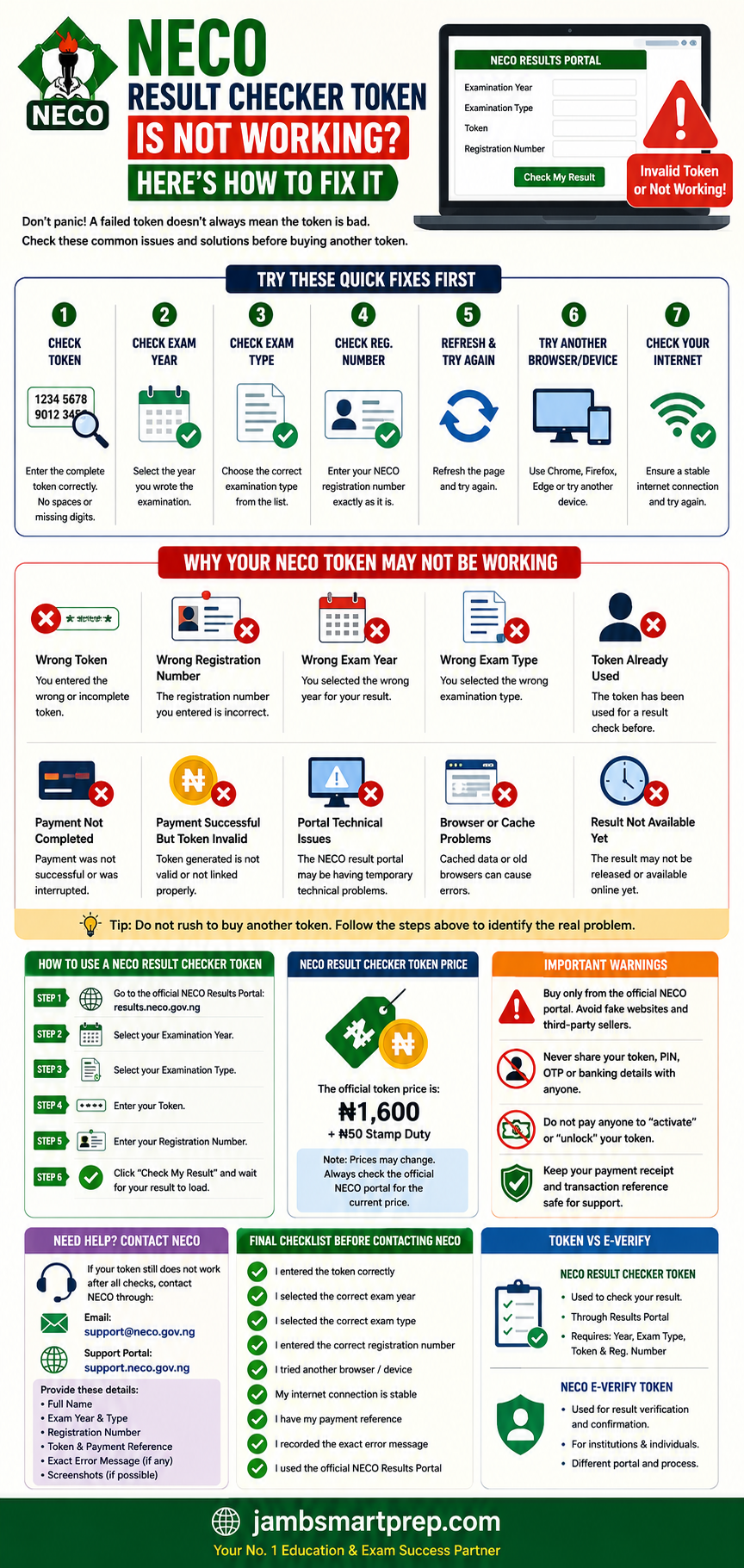
NECO RESULT CHECKER TOKEN NOT WORKING?
NECO TOKEN NOT WORKING?
1. CHECK YOUR TOKEN
Enter every character correctly.
2. CHECK EXAMINATION YEAR
Select the year of the result.
3. CHECK EXAMINATION TYPE
Choose the correct examination.
4. CHECK REGISTRATION NUMBER
Use your correct NECO registration number.
5. TRY ANOTHER BROWSER
Refresh or use another browser.
6. TRY ANOTHER DEVICE
Check from another phone or computer.
7. CHECK YOUR PAYMENT
Keep your transaction reference.
8. USE OFFICIAL SUPPORT
Contact NECO if the problem continues.
Also Read:
- NECO Result Checker Portal Login
- How to Buy a Genuine NECO Result Checker Token
- How to Print Your NECO Result
- NECO Result Verification Guide
- NECO e-Verify Portal Login
- NERVS Portal
- NECO Result Portal Not Working
- NECO Result Not Showing
- What to Do If Your NECO Result Is Still Pending
- Withheld NECO Result
- Missing or Incomplete NECO Result
- How to Correct Errors on NECO Result
- How to Correct Wrong Name on NECO Certificate
- How to Correct Wrong Date of Birth on NECO Certificate
- How to Correct Wrong Gender on NECO Certificate

How to Verify a NECO Result (NERVS) 2026: Complete NECO Result Verification Step – JambSmartPrep
Aug 27, 2026 -
[…] NECO result checker token is associated with checking a candidate’s examination […]
How To Correct Wrong NECO Registration Number: Step-by-Step Guide – JambSmartPrep
Aug 27, 2026 -
[…] you have purchased a valid NECO result token, but the registration number you entered is […]