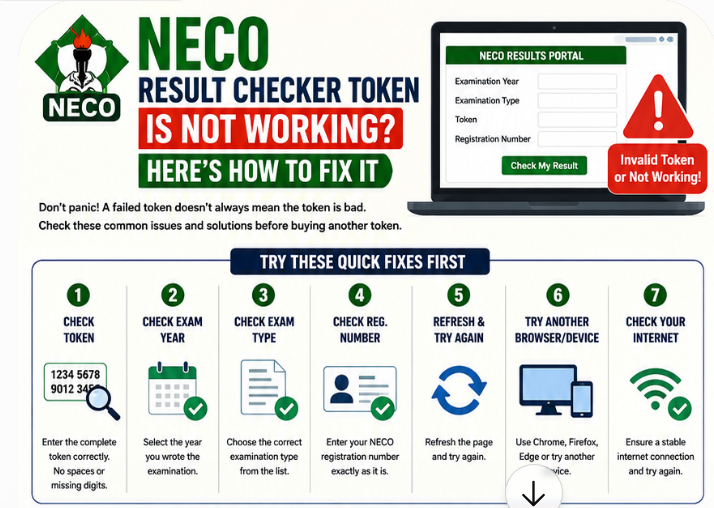
If your NECO token isn’t working, the cause is usually one of five things:
- the token was typed wrongly;
- you selected the wrong examination year or type;
- the token is already tied to another registration number;
- the token has reached its usage limit;
- you bought a fake token from an unofficial seller.
Most token problems can be fixed in minutes once you know which one you have, and the right fix is rarely “buy another token straight away”.
This guide explains how NECO result checker tokens work, how to buy a genuine one, every reason a token fails and the exact fix for each, and what to do if you paid but never received your token. You’ll also find a template for a support request that NECO can act on quickly.
- Check you’re on the official portal: results.neco.gov.ng.
- Retype the token exactly, with no spaces. Watch for O vs 0, I vs 1, and S vs 5.
- Check the examination year and type (SSCE Internal or External).
- Check your registration number against your photocard or slip.
- If the token says it’s used or linked to another number, contact NECO support with your token and payment details.
- Paid but no token? Check your email (including spam), then contact support.neco.gov.ng with your payment reference.
In this guide:
- What a NECO token is (and isn’t)
- How to buy a genuine NECO token
- How to use the token correctly
- Why your NECO token isn’t working: every cause and fix
- Paid but didn’t receive your token
- “Token already used” or linked to another number
- How to spot a fake NECO token
- Buying through a café or vendor
- How to contact NECO about a token
- Tips to avoid token problems
- FAQs
What a NECO Token Is (and Isn’t)
A NECO result checker token is a code you buy from NECO and enter on the result portal, together with your registration number, to view your result. It replaced the old NECO scratch card and is delivered electronically after payment.
| It is… | It is not… |
|---|---|
| A code for viewing and printing your NECO result | Your registration or examination number. You need both. |
| Bought from NECO’s official result portal | A JAMB or WAEC PIN. Those are separate. |
| Tied to the first result it’s used to check | Shareable between classmates |
| Limited to a set number of checks | Unlimited |
| For candidates checking their own result | A verification payment. Verification for institutions and employers is a separate service; see how to verify a NECO result. |
How to Buy a Genuine NECO Token
- Go to results.neco.gov.ng and choose the option to purchase a token.
- Create an account, or log in with your email address and phone number.
- Choose the number of tokens you need (usually one).
- Pay through the payment page shown (card, bank transfer or USSD, depending on what’s offered).
- Your token is shown on screen and sent to your email. Copy it somewhere safe before you leave the page.
- Check that it appears in your account’s purchase history on the portal, if available.
Price: the current price is displayed at checkout. Prices quoted on blogs and social media are often out of date. Buying directly from the portal is the cheapest and safest option.
Before you pay: a quick checklist
- ☐ The address bar shows results.neco.gov.ng.
- ☐ You’re using an email address you can open right now.
- ☐ Your phone number is correct.
- ☐ You have a stable connection, so the payment doesn’t time out halfway.
- ☐ You’re ready to screenshot the confirmation page.
How to Use the Token Correctly
- Open results.neco.gov.ng.
- Select the examination year: the year you sat the exam.
- Select the examination type: SSCE Internal (June/July, in school) or SSCE External (November/December, often called GCE).
- Enter the token exactly as issued.
- Enter your registration number exactly as on your photocard or slip.
- Click to check your result, then save it as a PDF and print it. See how to check and print your NECO result.
Tip: before you click, take a moment to double-check the registration number. The first number you check with a token is the one it becomes tied to.
Why Your NECO Token Isn’t Working: Every Cause and Fix
| Cause | How to tell | Fix |
|---|---|---|
| Typing error | “Invalid token”, or a message asking you to verify the token | Retype carefully, or copy and paste from your email without extra spaces |
| Look-alike characters | Token keeps failing although you typed it “correctly” | Compare each character: O/0, I/1/l, S/5, B/8, Z/2 |
| Wrong examination year | “No record found” with a valid token | Select the year you sat the exam |
| Wrong examination type | “No record found” with a valid token | Switch between SSCE Internal and External |
| Wrong registration number | “No record found”, or a message that the details don’t match | Copy from your photocard; don’t use your JAMB number |
| Token tied to another number | A message that the token is already used or linked | See token already used |
| Usage limit reached | A message that the maximum usage has been exceeded | Contact NECO support first. NECO has said a result is checked with one token, and further checks of the same result may need to go through NECO e-Verify. |
| Fake or reused token from an unofficial seller | The token was never valid, or was already used by someone else | Buy from results.neco.gov.ng; report the seller |
| Portal overloaded | The page doesn’t load or times out | Not a token problem. See NECO result portal not working. |
| Result not available to you | Pending, withheld or cancelled status | Not a token problem. See the result portal guide. |
How to tell a token problem from a result problem
A simple test: if the portal accepts your token and shows a result page, even a “pending” or incomplete one, the token is working. The issue is with your result record, not the token. A new token won’t change what you see. Buying another token only makes sense when the token itself is rejected, used up or tied to the wrong number.
Paid but Didn’t Receive Your NECO Token
This is stressful, but usually solvable. Payments sometimes go through while the confirmation page fails to load because of a weak connection.
- Check your email, including the spam, junk and promotions folders, and search for “NECO” or “token”.
- Log in to your account on results.neco.gov.ng and check your purchase history, if the portal offers it.
- Check your bank statement or SMS alert to confirm whether you were debited.
- Wait a short while. Some payments take time to confirm, especially bank transfers.
- Don’t pay again until you’ve confirmed the first payment failed.
- Contact NECO support at support.neco.gov.ng with your payment evidence (see what to include).
If you were debited but the payment failed
Failed card or transfer payments are often reversed automatically by your bank, but timing varies. If the money hasn’t returned after your bank’s usual reversal period, contact your bank with the transaction details, and keep NECO informed through your support ticket.
“Token Already Used” or Linked to Another Number
A token is tied to the first registration number it’s used to check. Once it’s tied, it won’t work for a different number. This usually happens when:
- you mistyped your registration number on the first check, so the token is now tied to the wrong number;
- a café operator or friend tested the token with another candidate’s number;
- you bought a token that someone had already used (a common scam).
What to do
- Try the token with the exact number you entered the first time, if you know it. If that was a typo, the result shown will be someone else’s, or “no record”.
- Contact NECO support with the token, its serial number (if any), your payment reference and your correct registration number. Explain what happened.
- If NECO can’t help, buy a new token from the official portal, and this time enter the details yourself, slowly.
Can I use my token to check a friend’s result?
Not if you’ve already used it for your own. Each token is for one candidate’s result. Your friend needs their own token.
Real Situations and What to Do
“The café operator tested my token and now it won’t work”
If the operator entered a different registration number first, perhaps another customer’s or a typo, your token may now be tied to that number. Ask the operator exactly what was entered. Contact NECO support with the token, your payment receipt and your correct registration number, and explain what happened. Next time, enter the registration number yourself.
“I bought the token on WhatsApp and it says invalid”
Unofficial sellers often sell fake tokens, or genuine tokens that have already been used. NECO has no record of your purchase, so it usually can’t help. Buy a new token on results.neco.gov.ng, and report the seller to the platform. Treat the loss as a lesson rather than paying the same seller again for a “replacement”.
“My token worked once, and now it says usage exceeded”
Repeated clicks while a slow page loads, or several rechecks, can use up the allowed checks. If you saved your result the first time, you don’t need to check again. If you didn’t, contact NECO support before buying anything. NECO has said a result can’t be checked again with a different token, and that further checks of the same result go through its e-Verify platform. Save the PDF straight away next time.
“The payment went through but the page went blank”
Don’t pay again. Check your email and your account on the portal. If the token isn’t there after a reasonable wait, open a NECO support ticket with your bank alert and payment reference.
“I typed my JAMB registration number by mistake”
The portal will usually return “no record found”, because a JAMB number won’t match any NECO record. Retry with your NECO registration number from your photocard. If the portal says the token is now tied to the wrong number, contact NECO support.
“I want to check results for my two children with one token”
Each token checks one candidate’s result. Buy a separate token for each child, and keep the tokens labelled so they don’t get mixed up.
A Character-by-Character Check for “Invalid Token”
Many “invalid” errors come from characters that look alike, especially when a token is read off a phone screen or a printout. Before you contact anyone, compare your entry with the original token using this table:
| Looks like… | Could actually be… | How to tell |
|---|---|---|
| O (letter) | 0 (zero) | Zero is often narrower; copy and paste if you can |
| I (capital i) | 1 (one) or l (small L) | Zoom in on the token in your email |
| S | 5 | 5 has a flat top |
| B | 8 | B has a straight left side |
| Z | 2 | 2 has a curved top |
| G | 6 | Zoom in |
When pasting, check that no space was added at the start or end. Some phones add one automatically. Delete it, then try again.
After Your Token Works: Make the Most of It
- Save the result as a PDF immediately, and email it to yourself.
- Print two copies for school and JAMB use.
- Check every detail: your name, subjects, grades and date of birth. See correcting errors on a NECO result.
- Write down your token and keep it with your registration slip. A CBT centre may ask for it during your JAMB O’level upload.
- Understand your grades. See the NECO grading system.
How to Spot a Fake NECO Token
Every results season, sellers on WhatsApp, Telegram, Instagram and some websites offer “cheap”, “unlimited” or “pre-loaded” NECO tokens. Warning signs:
- The price is much lower than the price on the official portal.
- They promise “unlimited checks” or tokens that “work for any number”.
- They ask you to pay into a personal account.
- They send the token as a screenshot rather than through NECO’s system.
- They offer to “check and send your result” if you share your registration number.
- They also offer to “upgrade” results, which is always a scam.
A fake or reused token wastes your money and can delay you at a critical time. Buy from results.neco.gov.ng only. See how to protect yourself from NECO result scams.
Tokens for SSCE Internal vs SSCE External (GCE)
You use the same result portal and the same kind of token for both examinations. What changes is what you select on the checking form:
| SSCE Internal | SSCE External (GCE) | |
|---|---|---|
| Who writes it | School candidates | Private candidates |
| When | June/July | November/December |
| Results usually released | Later the same year (2026: 24 September) | Early the following year |
| What to select | Exam type: SSCE Internal; year: the year you wrote it | Exam type: SSCE External; year: the year you wrote it |
If you wrote both, you need one token for each result, because each token ties to one registration number, and your Internal and External numbers are different.
Don’t Buy a Token Before Results Are Out
Buying early is fine if you buy from the official portal. But if you try to check before NECO releases results, the portal will return “no record found”, and you might think your token is broken. Worse, some sellers push “early access” tokens before results are released, which is a classic scam.
- Watch neco.gov.ng and reliable news for the official release announcement.
- Don’t check until NECO announces the release.
- Expect the portal to be busy for the first few days, and check at quiet hours.
Your Token and the JAMB O’level Upload
When you upload your NECO result to your JAMB profile at an accredited CBT centre, the centre needs your result details, and may ask for your token or a printout. Be prepared:
- Bring a printed copy of your result and your registration number.
- Have your token written down, in case the centre needs to access your result.
- Watch the operator enter your details, and check the uploaded grades before they submit.
- If your token has run out of checks, ask the centre whether a printout is enough, or ask NECO support how to access the result again (NECO has pointed candidates to e-Verify for further checks).
See what happens if you don’t upload your O’level result.
Why You Should Never Share Your Token Publicly
When candidates are stressed, they often post a screenshot of their token in a group chat or comment section asking, “Why is this not working?” That’s risky:
- Anyone who sees it could use up your remaining checks.
- Someone could tie your unused token to their own number.
- Scammers watch these posts and message candidates offering fake “fixes”.
If you need help, describe the error message, not the token itself. Share the token only with NECO’s official support.
Buying Through a Café or Vendor
If you buy your token through a cyber café or vendor, stay in control:
- Ask them to buy it on results.neco.gov.ng while you watch.
- Enter your registration number yourself, or check it on screen before they click.
- Get the token, the receipt and the email confirmation sent to your email.
- Expect a service charge on top of NECO’s price; agree it before they start.
- Don’t leave your token with the café “to check later”.
How to Contact NECO About a Token
Use only official channels:
- NECO support portal: support.neco.gov.ng. Open a ticket and keep the ticket number.
- Result portal support email: su*****@******ov.ng
- Your NECO state office, if you can visit in person.
What to include
- Your full name and registration number
- Examination year and type
- The token (and serial number, if shown)
- Payment date, amount and reference, with a screenshot of the debit alert or receipt
- The email address and phone number used to buy the token
- The exact error message, with a screenshot
Support request template
Dear NECO Support,
On [date], I bought a result checker token on results.neco.gov.ng using the email [email] and phone number [number]. My payment reference is [reference] (screenshot attached). [Describe the problem: “I was debited but did not receive the token” / “The token shows ‘invalid'” / “The token says it has been used with another registration number”.]
My details: [Full name], registration number [number], SSCE [Internal/External] [year].
Please help me resolve this.
Thank you,
[Full name]
Send one complete request and follow up on the same ticket. Several duplicate tickets can slow things down.
How Long Does NECO Take to Respond?
Response times vary, especially in the busy weeks right after results are released, when many candidates contact support at once. To get the fastest possible help:
- Make your first message complete, with every detail and screenshot listed above, so support doesn’t need to ask for more.
- Use one channel and one ticket. Opening several tickets or emailing several addresses with the same problem can create confusion.
- Follow up politely on the same ticket after a reasonable time, quoting your ticket number.
- Visit your state office if the matter is urgent, for example an admission deadline, and bring printed evidence.
While you wait, don’t buy tokens from unofficial sellers “just to try”. It rarely helps and often adds a second problem. Keep checking your email and your support ticket, and tell your institution in writing if an admission deadline is getting close.
Tips to Avoid Token Problems
- Buy only from results.neco.gov.ng.
- Use your own email and phone number, so confirmations come to you.
- Check your registration number twice before the first check.
- Click “Check” once and wait. Don’t keep clicking while the page loads.
- Save your result as a PDF the first time it opens, so you don’t need to recheck often.
- Keep your token private. Don’t post it in group chats when asking for help.
- Check at quiet times to avoid timeouts that can waste attempts.
Step-by-Step Troubleshooting Path
Follow this path from the top, and stop as soon as one step solves the problem:
- Does results.neco.gov.ng load? If not, it’s the portal or your connection, not the token. See NECO result portal not working.
- Did NECO announce the release of your results? If not, wait.
- Is the year correct? It should be the year you wrote the exam.
- Is the exam type correct? Internal for school candidates; External for GCE.
- Is the registration number exactly as on your photocard?
- Is the token typed exactly, with no spaces and no look-alike characters?
- Does the message say the token is used, linked or exceeded? Go to the used token section.
- Did you buy from an unofficial seller? The token may be fake. Buy from the official portal.
- Still stuck? Open one NECO support ticket with screenshots and your payment reference.
For School Examination Officers and Parents
If you’re helping several candidates, a little organisation prevents most token problems:
- Keep a list of each candidate’s name, registration number and token, and store it securely.
- Enter each registration number carefully, and check it before clicking, because a token ties to the first number used.
- Save each result as a PDF named after the candidate, so nobody needs to recheck.
- Buy tokens from the official portal only, and keep the receipts together.
- Report group problems early. If several candidates see the same error, contact NECO on behalf of the group.
Glossary
| Term | Meaning |
|---|---|
| Token | The electronic code you buy to check your NECO result |
| Registration number | Your NECO examination number, on your photocard and slip |
| SSCE Internal | The June/July examination for school candidates |
| SSCE External | The November/December examination for private candidates (GCE) |
| Payment reference | The unique code for your payment, used to trace it |
| Usage limit | The maximum number of times a token can check a result |
| Verification | A separate NECO service for institutions and employers to confirm a result |
Token vs Scratch Card vs Verification: Which Do You Need?
| You want to… | You need… | Guide |
|---|---|---|
| See and print your own result | A result checker token | This guide |
| Upload your NECO result to JAMB | Your result details; the CBT centre may ask for your token | O’level upload |
| Let a university or employer confirm your result | NECO’s official verification service | Verify a NECO result |
| Get your physical certificate | NECO’s certificate collection process | NECO certificate collection |
Frequently Asked Questions
Why is my NECO token not working?
Usually because of a typing error, the wrong examination year or type, a wrong registration number, a token already tied to another number, or a fake token. Use the table above to find your cause.
How many times can I use a NECO token?
A token can be used a limited number of times for the same result, and NECO has said you can’t use another token to check the same result again. Further checks go through NECO e-Verify. Save your result as a PDF the first time so you don’t need to recheck.
Can one NECO token check two results?
No. A token is tied to the first registration number it checks.
I paid for a NECO token but didn’t receive it. What should I do?
Check your email (including spam) and your account on the portal. If it’s not there, contact support.neco.gov.ng with your payment reference and screenshot. Don’t pay again until you’ve confirmed the first payment failed.
How much is the NECO result checker token?
The current price is shown at checkout on results.neco.gov.ng. Vendors may add a service charge.
Is there a free NECO result checker?
No genuine free checker exists for viewing your result. Sites offering “free” checking are usually after your details. Use the official portal.
Can I check my NECO result with my scratch card?
NECO now uses electronic tokens bought on the result portal. Old scratch cards are not the current method.
Where do I log in to the NECO result checker?
At results.neco.gov.ng. You can create an account there to buy tokens; checking your result uses the token and your registration number.
My token says “invalid” but I copied it correctly. Why?
Check for hidden spaces when pasting, and for look-alike characters. If it still fails, the token may be fake or already used. Contact NECO support with your payment details.
Can NECO refund a token?
Contact NECO support with your payment details and explain the problem. NECO will advise on what’s possible in your case.
What’s the difference between “invalid token” and “no record found”?
“Invalid token” points to the token itself: a typo, a fake token, or one that’s been used up. “No record found” usually means the token is fine, but the year, exam type or registration number doesn’t match a released result.
Can I check my NECO result without a token?
Not on the result portal. You need a valid token and your registration number. Your school may have a copy of your result for internal purposes, but for your own printout and JAMB upload, use a token from the official portal.
Is it safe to buy a NECO token with my debit card?
Yes, on the official portal (results.neco.gov.ng), where payment is processed through its payment page. Never enter card details on unofficial sites.
Do I need a new token for NECO GCE?
Yes, if you’ve already used your token for your SSCE Internal result. Each token is tied to one registration number, and your GCE number is different.
Can I buy a NECO token with a bank transfer or USSD?
The official portal shows the payment options available at checkout. Use only those options, and keep your payment reference.
My token email went to spam. Is it still valid?
Yes. Where the email lands doesn’t affect the token. Copy it carefully, and mark the email “not spam” so future messages arrive in your inbox.
Can I use the same token next year?
Your token stays tied to the result it first checked. To check a different result, such as a later GCE, you need a new token.
Does a new token help if my result is pending?
No. A pending, withheld or incomplete result will look the same with any token until NECO updates the record.
Related guides: How to check your NECO result · NECO result portal not working · NECO result scams · Recover a lost NECO examination number

NECO Result Token Problems: Invalid Token, Payment Failed, Token Not Working and How to Fix Them – JambSmartPrep
Sep 30, 2026 -
[…] NECO result checker token is the access credential used to check a candidate’s result through the NECO result-checking […]