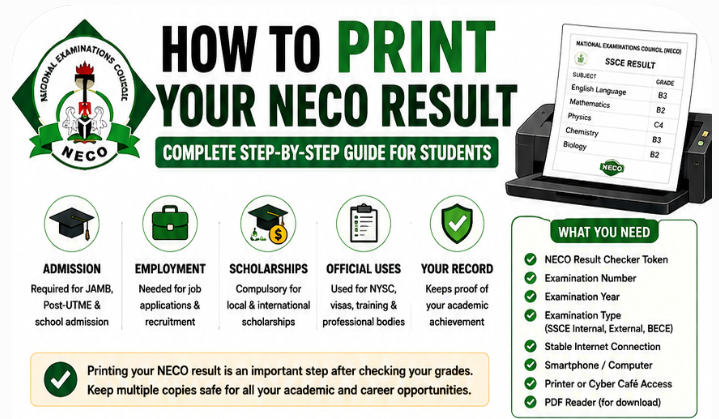
I trust you are here because you want to learn how to print your NECO result online, download your result securely, fix printing errors, and obtain a clear copy for admission and employment.
Interestingly, printing your NECO result is one of the final but most important steps after successfully checking your examination grades. Whether you are applying for university admission through JAMB, submitting documents for a scholarship, seeking employment, or preparing for international studies, you will almost certainly need a clear and accurate NECO result printout.
Many Nigerian students know how to check their NECO results but become confused when it is time to print them.
Questions such as “How do I print my NECO result online?”, “Can I print my NECO result with my phone?”, and “Why can’t I print my NECO result?” are among the most searched queries every year after NECO releases examination results.
Printing your result incorrectly can lead to several problems, including incomplete printouts, missing examination details, poor print quality, or delays during admission screening. Fortunately, these issues are easy to avoid when you follow the correct procedure.
In this comprehensive NECO Result Printing Guide, you will learn everything you need to know about how to print your NECO result online, the requirements, common printing problems and solutions, best practices, and expert tips for obtaining a professional-quality printout. This guide is designed for both SSCE Internal (School Candidates) and SSCE External (Private Candidates).
Why Printing Your NECO Result Is Important
Many candidates assume that checking their result online is enough. While viewing your grades is important, most institutions require a printed copy for official documentation.
A printed NECO result serves as evidence of your examination performance before your original certificate becomes available.
Difference Between Checking and Printing a NECO Result
| Checking Your Result | Printing Your Result |
|---|---|
| Allows you to view your grades online | Produces a physical copy of your result |
| Requires a valid result checker token | Requires a valid result checker token and printer or PDF download |
| Mainly for personal viewing | Used for official submissions |
| Temporary online access | Permanent printed record for future use |
Situations Where a Printed NECO Result Is Required
A printed NECO result may be requested for:
- JAMB admission screening
- Post-UTME registration
- Direct Entry applications
- Polytechnic admission
- College of Education admission
- Scholarship applications
- Employment opportunities
- NYSC documentation
- Professional training programmes
- Visa applications
- International university admission
- Credential evaluation
For example, a student applying for admission into the University of Lagos (UNILAG) through JAMB may be required to upload or present a printed copy of their NECO result during Post-UTME screening.
Similarly, scholarship providers such as the MTN Foundation Scholarship Scheme or Federal Government Scholarship Awards may require applicants to upload a scanned copy of their printed result during the application process.
Requirements for Printing Your NECO Result
Before attempting to print your result, ensure that you have all the necessary information ready.
Preparing these items in advance will save time and reduce the chances of errors.
1. NECO Result Checker Token
A genuine NECO Result Checker Token is required before you can access your result online.
Always purchase your token through approved channels to avoid invalid or already-used tokens.
2. Examination Number
You will need the exact examination number assigned to you during registration.
Double-check every digit before submitting it.
3. Examination Year
Select the correct examination year.
Choosing the wrong year is one of the most common reasons candidates cannot access their results.
4. Examination Type
Choose the appropriate examination category, such as:
- SSCE Internal
- SSCE External
- BECE
Selecting the wrong examination type may prevent your result from loading.
5. Stable Internet Connection
A reliable internet connection helps prevent interrupted sessions during result checking and printing.
6. Smartphone or Computer
You can print your result using:
- Desktop computer
- Laptop
- Android phone
- iPhone
- Tablet
7. Printer or Access to a Cyber Café
If you do not own a printer, you can:
- Visit a nearby cyber café.
- Use a business centre.
- Save the result as a PDF and print it later.
8. PDF Reader (Optional but Recommended)
Downloading your result as a PDF before printing allows you to:
- Keep a permanent digital copy.
- Print multiple copies later.
- Share the file electronically when needed.
NECO Result Printing Checklist
Before starting, make sure you have:
- ✅ Genuine NECO Result Checker Token
- ✅ Correct examination number
- ✅ Correct examination year
- ✅ Correct examination type
- ✅ Stable internet connection
- ✅ Smartphone, tablet, or computer
- ✅ Printer or nearby cyber café
- ✅ PDF reader
- ✅ Email address for backup (optional)
- ✅ USB drive or cloud storage (optional)
Completing this checklist greatly reduces the chances of experiencing problems during the printing process.
Where Can You Print Your NECO Result?
There are several convenient ways to print your NECO result depending on the resources available to you.
Printing at Home
Printing at home is one of the most convenient options.
Advantages include:
- Privacy
- Immediate access
- Ability to print multiple copies
- Better document management
You will need:
- Internet connection
- Computer or smartphone
- Printer
- Printing paper
Printing at a Cyber Café
Cyber cafés remain one of the most popular options among Nigerian students.
Benefits include:
- Professional assistance
- High-quality printers
- Fast internet
- Immediate troubleshooting
This option is ideal for candidates who are unfamiliar with the printing process.
Printing Through Your School
Some secondary schools help students print their NECO results, particularly immediately after results are released.
School examination officers may also assist candidates who encounter difficulties accessing their results.
Printing at Business Centres
Business centres usually provide:
- Colour printing
- Black-and-white printing
- PDF conversion
- Document scanning
- Photocopying
This option is suitable if you have already downloaded your result and simply need a high-quality printout.
Step-by-Step Guide on How to Print Your NECO Result Online
The printing process is straightforward when you follow each step carefully.
Step 1: Purchase a Genuine NECO Result Checker Token
Before accessing your result, obtain a genuine NECO Result Checker Token from an approved source.
Avoid buying tokens from unauthorized vendors, as fake or previously used tokens may not work.
Tip: Keep your token confidential and avoid sharing it with others.
Step 2: Visit the Official NECO Result Portal
Open your preferred web browser and access the official NECO result checking portal.
Using the official portal helps protect your personal information and ensures that the result displayed is authentic.
Step 3: Select Your Examination Year
Choose the exact year you sat for the examination.
For example, if you wrote the examination in a particular year, ensure that the same year is selected from the drop-down menu.
Tip: Selecting the wrong examination year is a common mistake that prevents candidates from accessing their results.
Step 4: Select the Correct Examination Type
Choose the correct examination category:
- SSCE Internal
- SSCE External
- BECE
Selecting the wrong option may result in an error message.
Step 5: Enter Your Examination Number
Type your examination number carefully.
Avoid:
- Missing digits
- Extra spaces
- Typographical errors
Always compare your entry with your registration slip before proceeding.
Step 6: Enter Your Result Checker Token
Input the token exactly as provided.
A single incorrect character can prevent successful access.
Step 7: View Your Result
Once all the required information has been entered correctly, your result should appear on the screen.
Carefully review:
- Candidate name
- Examination number
- Subjects
- Grades
- Examination details
Confirm that everything is correct before proceeding.
Step 8: Download or Save the Result
Whenever possible, save your result as a PDF before printing.
This allows you to:
- Print additional copies later.
- Send copies electronically.
- Keep a permanent backup.
Step 9: Print the Result
Open the downloaded PDF or use your browser’s print option.
For the best outcome:
- Use A4 paper.
- Set print quality to High.
- Preview the page before printing.
- Ensure that all examination details are visible.
Printing a clear and complete copy will help you avoid unnecessary problems during admission, scholarship applications, or employment documentation.
How to Print Your NECO Result Using a Smartphone
Many candidates believe they need a laptop or desktop computer to print their NECO result. Fortunately, that is no longer the case. Modern smartphones make it possible to access, download, and even print your NECO result from almost anywhere.
Whether you use an Android phone or an iPhone, the process is straightforward as long as you have a stable internet connection and a genuine NECO Result Checker Token.
Printing with a smartphone is especially useful for candidates who need to submit documents quickly for university admission, scholarships, or job applications.
Printing Your NECO Result on an Android Phone
Android devices are widely used in Nigeria and support NECO result printing through mobile browsers.
Simply:
- Connect to a reliable internet network.
- Open your preferred browser.
- Visit the official NECO result portal.
- Enter your examination details correctly.
- View your result.
- Save it as a PDF.
- Print immediately or send it to a nearby business centre.
Many Android phones also support wireless printing through Wi-Fi-enabled printers.
Printing Your NECO Result on an iPhone
The process is almost identical for iPhone users.
After accessing your result:
- Save the page as a PDF.
- Use AirPrint if your printer supports it.
- Alternatively, share the PDF with a print shop through WhatsApp, email, or AirDrop.
iPhones produce high-quality PDF files, making them ideal for official document printing.
Using a Mobile Browser
You can use browsers such as:
- Google Chrome
- Safari
- Microsoft Edge
- Firefox
- Opera
For the best experience:
- Update your browser.
- Enable PDF downloads.
- Avoid multiple open tabs while printing.
Saving the Result as a PDF
Downloading your result as a PDF is strongly recommended.
Benefits include:
- Easy reprinting.
- Faster sharing.
- Secure backup.
- Better print quality.
- Offline access.
Connecting to a Wireless Printer
Many modern printers allow direct printing from smartphones.
After downloading your PDF:
- Connect your phone and printer to the same Wi-Fi network.
- Select the Print option.
- Choose your printer.
- Preview the document.
- Print.
Sharing with a Print Shop
If you do not own a printer:
- Save the PDF.
- Send it through WhatsApp.
- Email it to a business centre.
- Copy it to a flash drive.
Most business centres can print directly from your PDF without requiring you to log into your NECO account again.
How to Download Your NECO Result Before Printing
Although you can print directly from the browser, downloading the result first is a much safer option.
Downloading creates a permanent copy that remains available even if you lose internet access later.
Save as PDF
The PDF format preserves the original layout and ensures consistent print quality.
Most browsers provide a Save as PDF option.
Choose this option before printing whenever possible.
Name the File Properly
Avoid generic file names like:
- Document.pdf
- Result.pdf
Instead, use descriptive names such as:
- NECO_Result_John_Okafor.pdf
- NECO_SSCE_Result.pdf
Proper file names make future retrieval easier.
Store in Cloud Storage
Cloud storage provides protection against accidental loss.
Popular options include:
- Google Drive
- OneDrive
- Dropbox
- iCloud
Cloud backups are especially useful if your phone is lost or damaged.
Email Yourself a Copy
Sending the PDF to your email provides another layer of backup.
You can later download the file from any computer or smartphone.
Save on a USB Flash Drive
If you frequently visit cyber cafés or business centres, saving the PDF on a flash drive allows quick printing whenever needed.
Why Download Before Printing?
Downloading first offers several advantages:
- Prevents repeated token usage.
- Makes reprinting easier.
- Creates permanent backups.
- Simplifies online applications.
- Improves print quality.
Common Problems When Printing a NECO Result
Even when candidates follow the correct procedure, some issues may arise.
Fortunately, most printing problems have simple solutions.
1. Invalid Result Checker Token
One of the most common issues is receiving an Invalid Token message.
Possible causes include:
- Fake token.
- Already-used token.
- Incorrect token entry.
- Expired purchase.
Solution
- Confirm that the token is genuine.
- Enter every character correctly.
- Purchase only from approved vendors.
- Avoid copying extra spaces.
2. Wrong Examination Number
Typing mistakes are very common.
Even one incorrect digit will prevent your result from loading.
Solution
Compare your examination number with:
- Registration slip
- Examination photo card
- Previous printout
Never rely on memory.
3. Incorrect Examination Year
Candidates sometimes select the wrong year from the dropdown menu.
Solution
Verify your examination year before submitting your request.
4. Poor Internet Connection
Slow internet may cause:
- Blank pages.
- Login failures.
- Incomplete loading.
- Timeout errors.
Solution
- Switch to a stronger network.
- Wait until network traffic reduces.
- Refresh the page.
- Avoid unstable public Wi-Fi connections.
5. Browser Problems
Older browsers may not display the result correctly.
Solution
Update your browser or try another one.
Google Chrome and Microsoft Edge generally provide excellent compatibility.
6. Result Not Yet Released
Some candidates attempt to print their results before NECO officially releases them.
Solution
Wait for NECO’s official announcement before attempting to access your result.
7. Printer Issues
Printing problems may include:
- Blank pages.
- Smudged text.
- Missing information.
- Cropped pages.
- Low ink quality.
Solution
Check:
- Ink level.
- Paper alignment.
- Printer settings.
- Page orientation.
- Print preview.
How to Print a Clear and Professional NECO Result
Your printed result should be neat, complete, and easy to read.
Poor-quality printouts may create unnecessary delays during admission or document screening.
Use Good Quality Paper
White A4 paper produces the most professional appearance.
Avoid:
- Thin paper.
- Torn sheets.
- Coloured paper.
Select High Print Quality
Choose:
- High Quality
- Best Quality
instead of Draft Mode.
This improves text sharpness.
Colour or Black-and-White?
Both are generally acceptable provided the document remains clear and complete.
If possible, colour printing gives a more professional appearance, especially when submitting documents for:
- Scholarships
- Visa applications
- International admissions
Print From PDF Instead of Browser
Printing from PDF usually gives:
- Better formatting.
- Better page alignment.
- Higher resolution.
- Fewer browser errors.
Check Print Preview
Always preview your document before printing.
Confirm that:
- Candidate name appears.
- Examination number is visible.
- Subject grades are complete.
- Nothing is cut off.
Use Correct Page Orientation
Most NECO result printouts display correctly in Portrait orientation.
Always preview the layout before printing.
Avoid Blurry Printouts
Blurry documents may be rejected during screening.
Common causes include:
- Low ink.
- Dirty printer heads.
- Low-resolution printing.
- Poor paper quality.
Replacing ink cartridges or cleaning the printer usually resolves this problem.
Can You Print Your NECO Result Multiple Times?
This is one of the questions candidates ask most frequently.
The good news is that you can generally produce additional printed copies of your downloaded result for future use, provided you have already saved it as a PDF or still have access to your result through the official portal and meet the applicable access requirements.
Having multiple copies is recommended because the same document may be requested during different stages of your academic or professional journey.
For example, you may need separate copies for:
- JAMB admission screening
- University registration
- Scholarship applications
- Employment interviews
- Professional licensing
- Visa processing
Importance of Keeping Digital Copies
Digital copies provide long-term protection.
Keep backups in multiple locations:
- Laptop
- Smartphone
- Google Drive
- OneDrive
- USB flash drive
Multiple backups reduce the risk of losing important documents.
Safe Document Management Tips
After printing your NECO result:
- Store the original printout in a waterproof document folder.
- Keep additional photocopies separately.
- Save multiple digital backups.
- Avoid exposing documents to moisture or direct sunlight.
- Never share your examination details or result checker token with unauthorized persons.
Proper document management ensures that your NECO result remains available whenever it is needed for admission, employment, scholarship applications, or official verification.
Is the Printed NECO Result Accepted for Admission?
One of the most common questions candidates ask after checking and printing their examination results is whether the printed copy is officially accepted for admission.
The simple answer is yes. In many situations, universities, polytechnics, colleges of education, scholarship boards, and employers accept a printed NECO result during the early stages of screening.
However, some institutions may later request additional documents, such as the original NECO certificate or official result verification, before completing the admission or employment process.
University Admission
Most Nigerian universities require candidates to upload or present a printed copy of their O’Level results during:
- JAMB admission processing
- Post-UTME registration
- Physical screening
- Departmental clearance
- Final registration
If you are using NECO as your O’Level qualification, your printed result serves as temporary evidence of your examination performance before your certificate is issued.
Polytechnics
Federal and State Polytechnics also accept printed NECO results during:
- Admission applications
- Screening exercises
- Clearance procedures
Candidates should ensure that their printout is clear and all grades are visible.
Colleges of Education
Colleges of Education generally accept printed NECO results for:
- NCE admission
- Registration
- Student documentation
Employment Applications
Many employers request copies of academic qualifications during recruitment.
A printed NECO result may be accepted during the application stage, while the original certificate or official verification may be requested before employment is confirmed.
Scholarship Applications
Many scholarship programmes require applicants to upload scanned copies of their examination results.
Examples include:
- Federal Government Scholarship Awards
- MTN Foundation Scholarship
- NLNG Scholarship
- Agbami Scholarship
- State Government Scholarship Boards
A clear NECO result printout improves the quality of your application.
International Applications
Students applying to study abroad may also use a printed NECO result during the initial application stage.
Some foreign institutions later request:
- Official certificate
- Result verification
- Credential evaluation
Always read the admission requirements carefully.
Difference Between NECO Result Printout and NECO Certificate
Many candidates mistakenly believe that the printed result obtained online is the same as the NECO certificate.
Although both contain examination information, they serve different purposes.
| NECO Result Printout | NECO Certificate |
|---|---|
| Available shortly after results are released | Issued after the examination cycle is completed |
| Printed online | Collected through official NECO channels or the candidate’s school |
| Commonly used for admission screening | Permanent academic qualification document |
| Can be downloaded multiple times (subject to access requirements) | Issued once and should be carefully preserved |
| Temporary proof of examination performance | Official long-term record of qualification |
When Is a Result Printout Enough?
A printed result is commonly accepted for:
- Post-UTME registration
- Admission screening
- Scholarship applications
- Job applications
- Personal records
When Will You Need the Original Certificate?
The original certificate is often required for:
- Final university clearance
- Professional licensing
- International admissions
- Immigration applications
- Long-term employment documentation
For this reason, candidates should not neglect collecting their NECO certificates once they become available.
Expert Tips for Printing Your NECO Result
Following a few simple practices can help you avoid common mistakes and keep your academic records safe.
1. Buy Only Genuine Result Checker Tokens
Never purchase tokens from suspicious websites or unofficial vendors.
Using fake tokens may prevent you from accessing your result and could expose you to fraud.
2. Print More Than One Copy
It is advisable to print several copies.
Different institutions may request separate copies during admission or employment processes.
Having extra copies also saves time later.
3. Save Multiple Digital Backups
Keep copies in several secure locations:
- Google Drive
- OneDrive
- Dropbox
- USB flash drive
- External hard drive
This protects your records against accidental loss.
4. Use High-Quality Printing
A clean, sharp printout reflects professionalism.
Use:
- White A4 paper
- High print quality
- Proper page alignment
Avoid faded or incomplete prints.
5. Laminate Only Photocopies
Although it may be tempting to laminate important documents immediately, it is generally better to laminate photocopies rather than originals.
Original documents may occasionally need to be stamped, certified, or scanned in ways that lamination can make difficult.
6. Verify Every Detail Before Submission
Before submitting your printed result anywhere, check:
- Candidate name
- Examination number
- Examination year
- Examination type
- Subject grades
Correcting mistakes early prevents future complications.
7. Keep Your Examination Details Confidential
Do not share:
- Examination number
- Result checker token
- Login details
Protecting your information reduces the risk of unauthorized access.
Real-Life Examples
Case Study 1: Admission Screening
A student from Kaduna applied for admission into a federal university after writing the Unified Tertiary Matriculation Examination (UTME).
During Post-UTME registration, the university required candidates to upload a clear copy of their NECO result.
Because the student had already downloaded and printed multiple copies, the registration was completed without delay.
Case Study 2: Employment Application
A graduate applying for an entry-level banking position was asked to submit O’Level results together with university credentials.
The candidate provided a professionally printed NECO result while awaiting the original certificate.
The employer later completed official academic verification before issuing an employment offer.
Case Study 3: Study Abroad Preparation
A student applying for admission to a university outside Nigeria needed electronic copies of all academic documents.
Since the NECO result had already been downloaded as a PDF and stored in cloud storage, the applicant quickly attached it to the online application without needing to revisit the result portal.
This simple preparation saved valuable time during the admission process.
NECO Result Printing Do’s and Don’ts
The table below highlights best practices every candidate should follow.
| Do | Don’t |
|---|---|
| Use the official NECO result portal | Use fake or unofficial websites |
| Save a PDF copy before printing | Delete downloaded files immediately |
| Print multiple copies | Depend on only one printed copy |
| Verify all information before printing | Ignore spelling or examination number errors |
| Keep printed copies in a safe folder | Fold or damage important documents |
| Store digital backups | Keep only one electronic copy |
| Use high-quality printing | Submit blurred or incomplete printouts |
| Protect your examination details | Share your result checker token carelessly |
Following these simple guidelines will help you avoid many of the problems candidates commonly encounter after result release.
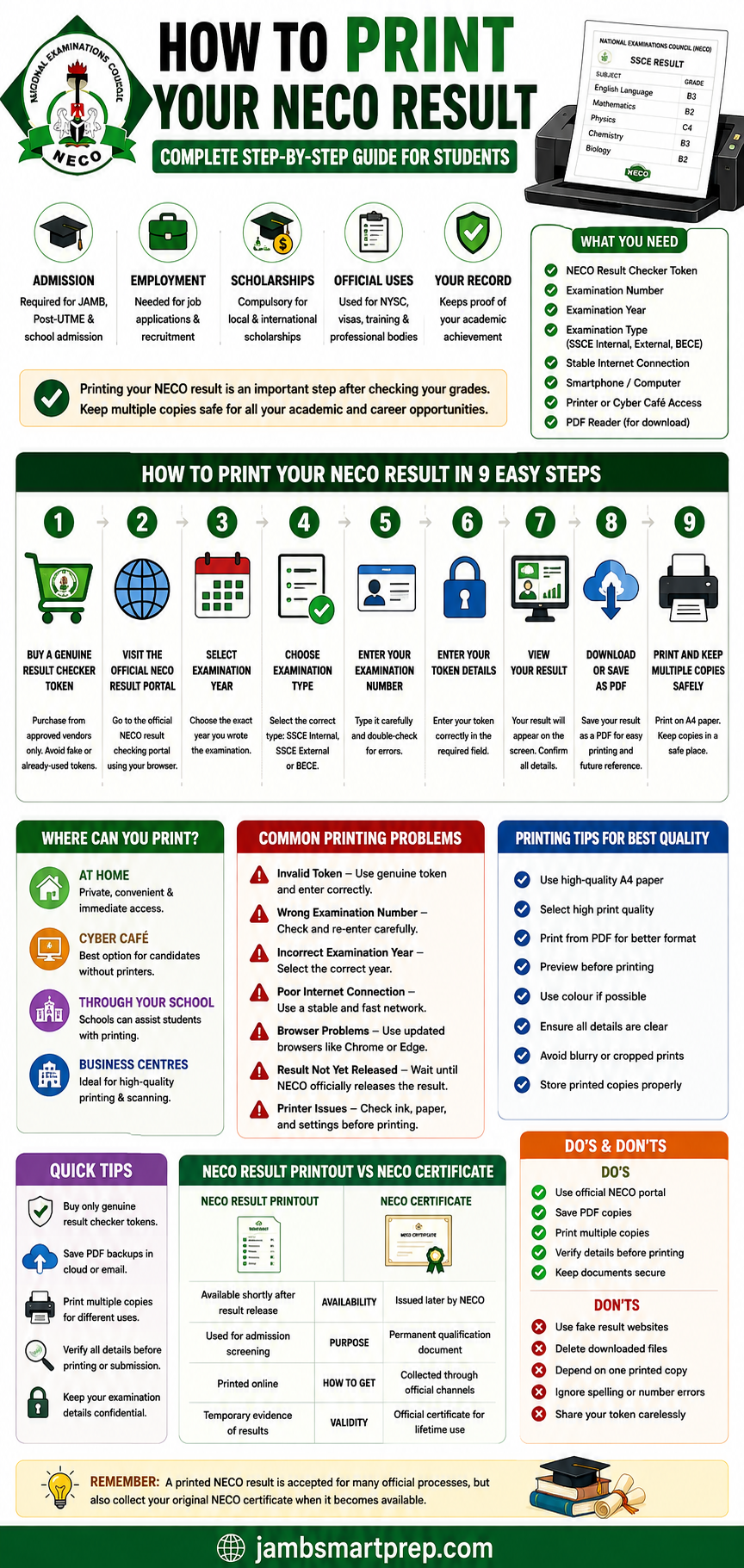
How to Print Your NECO Result in 9 Easy Steps
Step 1
🪙 Buy a Genuine NECO Result Checker Token
⬇
Step 2
🌐 Visit the Official NECO Result Portal
⬇
Step 3
📅 Select Your Examination Year
⬇
Step 4
📝 Choose Your Examination Type
⬇
Step 5
🔢 Enter Your Examination Number
⬇
Step 6
🔐 Enter Your Result Checker Token
⬇
Step 7
📄 View Your Result
⬇
Step 8
💾 Download or Save as PDF
⬇
Step 9
🖨️ Print and Keep Multiple Copies Safely
Quick Tips
✔ Buy only genuine result checker tokens
✔ Save your result as a PDF before printing
✔ Print more than one copy
✔ Double-check every examination detail
✔ Keep printed and digital copies safely
✔ Use high-quality A4 paper for official submissions
Common Printing Errors to Avoid
❌ Invalid result checker token
❌ Wrong examination number
❌ Incorrect examination year
❌ Slow or unstable internet connection
❌ Browser compatibility issues
❌ Printer running out of ink
❌ Printing without checking the preview
Frequently Asked Questions (FAQ)
1. How do I print my NECO result online?
To print your NECO result online:
- Purchase a genuine NECO Result Checker Token.
- Visit the official NECO result portal https://results.neco.gov.ng/
- Select your examination year.
- Choose your examination type.
- Enter your examination number.
- Input your token.
- View your result.
- Download it as a PDF or use the print option directly.
- Print the document using a printer or at a cyber café.
Always review your details before printing to ensure there are no errors.
2. Can I print my NECO result with my phone?
Yes. You can use an Android phone or iPhone to access the official NECO result portal, check your result, save it as a PDF, and print it using:
- A wireless printer
- A business centre
- A cyber café
- A print shop
Many candidates now complete the entire process using only their smartphones.
3. Do I need a NECO Result Checker Token?
Yes.
A valid NECO Result Checker Token is required to access your examination result online.
Always purchase genuine tokens from approved channels to avoid fraud or invalid access.
4. Can I print my NECO result more than once?
Yes.
After downloading and saving your result as a PDF, you can print additional copies whenever you need them.
It is advisable to keep multiple printed and digital copies for future use.
5. Can cyber cafés print NECO results?
Yes.
Most cyber cafés and business centres across Nigeria offer NECO result printing services.
If you already have the PDF, simply take it to the café for printing.
6. Why can’t I print my NECO result?
Several issues may prevent successful printing, including:
- Wrong examination number
- Incorrect examination year
- Invalid result checker token
- Selecting the wrong examination type
- Poor internet connection
- Browser compatibility problems
- Result not yet released
Double-check your information and try again before seeking assistance. Also read: NECO Portal Problems: NECO Result Not Showing? Causes, Fixes, and Solutions
7. Can universities accept printed NECO results?
Yes.
Most universities, polytechnics, and colleges of education accept printed NECO results during:
- JAMB admission screening
- Post-UTME registration
- Physical screening
- Departmental clearance
However, some institutions may later request your original NECO certificate or official result verification.
8. Is the printed NECO result the same as the certificate?
No.
A printed NECO result is different from the original certificate.
| Printed Result | Original Certificate |
|---|---|
| Available shortly after results are released | Issued later by NECO |
| Used for admission and screening | Permanent academic qualification |
| Downloaded and printed online | Collected through official channels |
Both documents are important and should be kept safely.
9. How do I download my NECO result as a PDF?
After your result appears on the screen:
- Use the browser’s Print option.
- Select Save as PDF instead of a printer.
- Save the file to your device.
You can later print it whenever necessary.
10. What should I do if my printed result contains errors?
If you notice errors such as:
- Incorrect name
- Wrong date of birth
- Wrong examination details
You should:
- Compare the information with your registration records.
- Contact your school if you were a school candidate.
- Visit the nearest NECO office if necessary.
- Follow official procedures for corrections where applicable.
Do not alter or edit your result yourself.
11. Can employers request a printed NECO result?
Yes.
Many employers request O’Level results during recruitment, especially for:
- Graduate trainee positions
- Civil service jobs
- Banking positions
- Security agencies
- Government employment
Some organizations may also verify the authenticity of your result before final employment.
12. Should I laminate my printed NECO result?
It is better to laminate photocopies rather than the original printout.
Some institutions may request certified copies or additional stamps, which are easier to apply to unlaminated documents.
Related NECO Guides
To help you manage every stage of your NECO journey, you may also find these guides useful:
- How to Check NECO Result Online
- How to Buy a Genuine NECO Result Checker Token
- How to Recover a Lost NECO Examination Number
- NECO Result Verification Guide
- How to Correct Errors on Your NECO Result
- Common NECO Registration Mistakes (And How to Avoid Them)
- NECO Registration Requirements
- NECO Certificate Collection Guide
These articles complement this guide and answer many of the questions candidates commonly ask after writing their examinations.
Final Checklist Before Printing Your NECO Result
Use this quick checklist before you begin.
| Task | Status |
|---|---|
| Purchased a genuine NECO Result Checker Token | ✅ |
| Confirmed examination number | ✅ |
| Selected the correct examination year | ✅ |
| Selected the correct examination type | ✅ |
| Verified candidate information | ✅ |
| Downloaded the result as a PDF | ✅ |
| Printed a clear copy | ✅ |
| Printed extra copies | ✅ |
| Saved digital backups | ✅ |
| Stored documents safely | ✅ |
Completing this checklist will help you avoid most of the problems candidates experience during result printing.
Conclusion
Printing your NECO result is more than simply producing a paper copy of your examination grades. It is an important step in preparing for university admission, scholarship applications, employment opportunities, professional training, and many other official processes.
By following the correct procedure, you can print your NECO result online quickly and confidently. Start by using a genuine Result Checker Token, enter your examination details carefully, save your result as a PDF, and produce a clear printout on quality paper. These simple steps can save you from unnecessary stress when deadlines are approaching.
It is equally important to keep several printed copies and secure digital backups. Storing your result in cloud storage, your email account, and a USB drive ensures you can access it whenever you need it. Good record-keeping today can prevent major inconveniences in the future.
Remember that while a printed NECO result is accepted for many admission and employment purposes, your original NECO certificate remains your permanent academic qualification. Collect it when it becomes available and keep it in a safe place.
With careful preparation and the guidance provided in this article, you can complete the printing process smoothly and have your documents ready whenever opportunities arise.
NOW OVER TO YOU
Have you successfully printed your NECO result online?
Did you face any challenges such as an invalid token, printing errors, or difficulty downloading your result?
Share your experience, questions, or helpful tips in the comments below. Your contribution could help other Nigerian students avoid common mistakes and complete their NECO result printing process with confidence.
If you found this guide helpful, consider sharing it with your classmates, friends, or family members who may also need assistance printing their NECO results. You can also subscribe to our blog for more practical guides on NECO, WAEC, JAMB, admissions, scholarships, and study opportunities.
