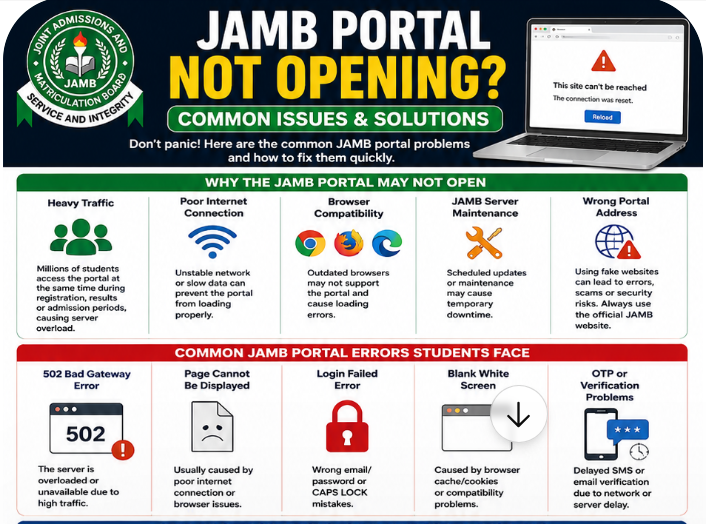
Is the JAMB portal not opening for you? You are not alone. Every registration season, result release and admission period, thousands of candidates hit the same blank pages, error messages and login loops on efacility.jamb.gov.ng, often when a deadline is close.
The good news: most JAMB portal problems have a simple cause and a fix you can apply yourself in minutes. In this guide, you will learn how to tell whether the portal is down or the problem is on your side, what each JAMB error message actually means, how to fix login, password and CAPS problems on your phone or laptop, and how to reach JAMB through its official support channels when nothing else works.
- Type efacility.jamb.gov.ng yourself. Don’t click links from WhatsApp or Facebook.
- Open another website. If it doesn’t load either, the problem is your data or network.
- Switch to Chrome and turn on Desktop site (tap the three dots, then tick “Desktop site”).
- Open a private/incognito tab, or clear the browser cache for the site.
- Log in with the email on your JAMB profile, not your registration number.
- Forgot your password? Text PASSWORD yo*******@*****le.com to 55019 or 66019 from your registered phone number.
- Still failing during a busy period? Try early morning (before 7 am) or late at night.
In this guide:
- Is the JAMB portal down, or is it just you?
- The only official JAMB web addresses
- Everything you can do on the JAMB portal
- JAMB portal error messages decoded (with fixes)
- Step-by-step troubleshooting flow
- How to fix the JAMB portal on your phone or laptop
- Login, password, email and profile code problems
- JAMB CAPS not opening
- Best times to use the JAMB portal
- JAMB portal problems by season
- What to do if the portal stays down near a deadline
- How to contact JAMB support
- Keep your JAMB account safe
- Frequently asked questions
Is the JAMB Portal Down, or Is It Just You?
Before you try any fix, spend one minute working out where the problem is. It saves you from clearing caches and resetting passwords when the real issue is JAMB’s server, and from waiting hours when the issue is actually your browser.
| Signs the problem is JAMB’s portal | Signs the problem is on your side |
|---|---|
| Friends on different networks get the same error at the same time | Other websites also fail to load |
| It is a busy period: registration closing, slip printing, results release or admission season | The portal works on another phone, laptop or network |
| You see “502 Bad Gateway”, “503 Service Unavailable” or a server error page | You see “Invalid email or password” or a login-specific message |
| JAMB has announced maintenance or an upgrade on its official channels | The page looks broken in one browser but fine in another |
| The jamb.gov.ng homepage is also slow or unavailable | You are using Opera Mini, UC Browser or a “data saver” mode |
If it is JAMB’s side, there is nothing to fix on your phone. Stop refreshing (repeated reloads add to the load), note the time, and try again later. The “best times” section below shows when the portal is usually fastest.
If it is your side, work through the error table and device fixes below.
The Only Official JAMB Web Addresses
Many candidates who think “the JAMB portal is not opening” are actually on the wrong website. Search results and social media are full of lookalike sites that copy JAMB’s name, collect your details or charge for free services. Bookmark these instead:
| Address | What it is for |
|---|---|
| efacility.jamb.gov.ng | Your candidate account: login, slip printing, result slip, O’level upload, CAPS (admission), admission letter, corrections |
| jamb.gov.ng | JAMB’s official website: announcements, FAQs, slip printing links during exam season, and links to support |
| support.jamb.gov.ng | JAMB’s official ticketing (complaints) system |
Rule of thumb: a genuine JAMB address ends in jamb.gov.ng. Addresses ending in .org, .com, .com.ng or .net that use “JAMB” in their name are not JAMB, even if they look official.
Also note that the institutional CAPS address (caps.jamb.gov.ng) is for universities and colleges, not candidates. As a candidate, you reach CAPS through efacility.jamb.gov.ng.
Everything You Can Do on the JAMB Portal (and Where to Find It)
Knowing where each service lives saves you from clicking around a slow portal. Here is a map of the main candidate services on JAMB e-Facility.
| Service | Where to find it | When you need it |
|---|---|---|
| Create profile / get profile code | By SMS (NIN + your NIN to 55019/66019), then the e-Facility profile |
Before buying your e-PIN |
| UTME / Direct Entry registration | At a JAMB-accredited CBT centre, using your profile code and e-PIN | During the registration window |
| Print exam slip | The slip printing link on jamb.gov.ng (opens about a week before the exam) | Before exam day |
| Check result / print result slip | e-Facility dashboard after results are released | After the UTME |
| Upload O’level result | At an accredited CBT centre, or online for WAEC results, through the "2026 UTME O’Level Upload" option JAMB introduced on e-Facility in August 2026; confirm it on your profile | As soon as your WAEC/NECO result is out |
| Data correction | e-Facility dashboard (paid service) | If your name, date of birth or other details are wrong |
| Change of course or institution | e-Facility dashboard (paid service) | Before your institution’s admission processing |
| Check admission status / CAPS | e-Facility → Check Admission Status → Access my CAPS | During admission season |
| Print admission letter | e-Facility dashboard, after accepting admission (paid service) | For school clearance |
| Check matriculation list (previous years) | efacility.jamb.gov.ng/CheckMatriculationList | To confirm you were matriculated in a past session |
| Raise a complaint | support.jamb.gov.ng | When a problem is specific to your account |
Menu names can change slightly between seasons, but the dashboard always groups these services as clickable cards after you log in.
JAMB Portal Error Messages Decoded (With Fixes)
The message on your screen usually tells you exactly what is wrong. Here is what the common ones mean and what to do.
| Error or symptom | What it usually means | What to do |
|---|---|---|
| “This site can’t be reached” / “Server not found” | Your network can’t reach the site, or the address is mistyped | Check your data or Wi-Fi, retype efacility.jamb.gov.ng, switch network |
| “502 Bad Gateway” | JAMB’s server is overloaded or restarting | Wait 30–60 minutes and try again; don’t keep refreshing |
| “503 Service Unavailable” | Too much traffic, or maintenance | Try again at a quieter time (early morning or late night) |
| “Server Error in ‘/’ Application” | A fault on JAMB’s server, not your phone | Go back to the login page and try again later |
| “Object reference not set to an instance of an object” | The page didn’t load your data properly, often after a timed-out session or a wrong year selection | Log out, close the tab, open a private tab, log in again and reselect the current year |
| “The underlying connection was closed” | The connection dropped mid-request, usually a weak network or a busy server | Move to a stronger network and retry; try a laptop |
| Page loads forever / spinning icon | Heavy traffic, or a browser blocking scripts | Use Chrome, turn off data saver and ad blockers, try incognito |
| Blank white page after login | Cached files conflict, or mobile view hides content | Clear the cache, turn on Desktop site, reload |
| “Invalid email or password” | Wrong login email, or wrong password | Use your profile email; reset the password (see below) |
| “Session expired” | You stayed idle too long | Log in again and finish your task without leaving the page |
| Only a “Welcome” page, with no menus | You are in mobile view, which hides the side menu | Turn on Desktop site, or use a laptop |
| “You are not eligible” (on CAPS) | The wrong exam year is selected | Select the current year before clicking Access my CAPS |
| “Sorry, you have not been given admission yet” | No offer yet, or you checked the wrong menu | Check Admission Status inside CAPS (steps below) |
| “You do not have permission…” | Session or access issue, often after switching pages too quickly | Log out, clear the cache, log in and use the dashboard links only |
| OTP or verification code not arriving | Network delay, or the wrong phone number on your profile | Wait a few minutes; don’t request repeatedly; check the number on your profile |
Step-by-Step Troubleshooting Flow
If you’re not sure where to start, follow this order. Each step rules out one cause, so you don’t waste time on fixes that can’t help.
- Does any other website load? No → fix your data or Wi-Fi first. Yes → go to step 2.
- Did you type efacility.jamb.gov.ng yourself? No → type it; you may be on a copycat site. Yes → step 3.
- Does jamb.gov.ng load? No → JAMB’s servers are likely busy; try again off-peak. Yes → step 4.
- Do you see a server error (502, 503, “Server Error”)? Yes → it’s JAMB’s side; wait and retry. No → step 5.
- Are you in Chrome with Desktop site on, in an incognito tab? No → switch and retry. Yes → step 6.
- Does the login page reject your details? Yes → check your profile email, then reset your password by link or SMS. No → step 7.
- You’re logged in, but a service (CAPS, slip, letter) won’t load? Check the right year is selected, use the dashboard links only, and try a laptop.
- Still stuck after all of this? Screenshot the error and raise a ticket at support.jamb.gov.ng.
How to Fix the JAMB Portal on Your Phone or Laptop
Most candidates use the portal on a phone, and most “not opening” problems happen there. Work through the steps for your device in order.
On an Android phone
- Use Google Chrome. Opera Mini, UC Browser and data-saver modes compress pages and often break the JAMB portal.
- Turn on Desktop site: tap the three dots at the top right and tick Desktop site. This shows the full menus, including CAPS.
- Clear the cache for the site: Chrome menu → Settings → Privacy and security → Clear browsing data → tick “Cached images and files” → Clear data.
- Or use an incognito tab: three dots → New incognito tab. This skips old cached data without clearing anything.
- Allow pop-ups for the site when printing slips or letters: Settings → Site settings → Pop-ups and redirects.
- Switch network if pages time out: from mobile data to Wi-Fi, or to another SIM.
On an iPhone
- Open the portal in Safari or Chrome.
- In Safari, tap the “aA” button in the address bar and choose Request Desktop Website.
- To clear the cache: Settings → Safari → Clear History and Website Data.
- Or use a Private tab to load the portal fresh.
On a laptop or desktop
- Use an up-to-date Chrome, Edge or Firefox.
- Press Ctrl + Shift + R (Windows) or Cmd + Shift + R (Mac) to reload without the cache.
- Try a private window (Ctrl + Shift + N in Chrome).
- Pause any ad blocker or VPN for the site.
A laptop is the most reliable device for JAMB tasks that involve printing or long forms, such as your exam slip, result slip or admission letter.
Saving and printing from the portal when it’s slow
When the portal finally loads your slip or letter, save it straight away so you never have to fight the portal for it again:
- Android: use the print option, choose Save as PDF as the printer, then save to your phone and email it to yourself.
- iPhone: tap Share → Print, pinch outwards on the preview to create a PDF, then save it to Files.
- Laptop: press Ctrl + P (Cmd + P on Mac) and choose Save as PDF.
Keep a copy in your email or cloud storage. A café can print it later from the PDF, without your password.
Login, Password, Email and Profile Code Problems
If the portal opens but you can’t get in, the issue is your login details, not the website. Here is how to fix each one.
You are using the wrong login details
You log in to efacility.jamb.gov.ng with the email address on your JAMB profile and your password. Your registration number alone will not log you in. Check the email printed on your registration or exam slip; a single wrong letter (for example, gmail.com versus gmai.com) causes “Invalid email or password”.
You forgot your JAMB password
You have two options:
- Online: click “Forgot password” on the efacility login page, enter your profile email, and follow the reset link sent to your inbox (check spam too).
- By SMS: according to JAMB’s official FAQ, text PASSWORD, a space, and your email address to 55019 or 66019 from the phone number you registered with. Example:
PASSWORD yo******@***il.com
You can no longer access your email
If you lost your email account, first try to recover it with your email provider (Gmail and others have account recovery). If that fails, raise a ticket with JAMB through the official support portal (below) and explain the situation with your registration number. Don’t create a new JAMB profile; JAMB does not allow multiple registrations.
You lost your profile code or e-PIN
| Problem | Official JAMB fix (send from your registered number) |
|---|---|
| Generate a profile code | Text NIN 12345678901 (your 11-digit NIN) to 55019 or 66019 |
| Lost profile code, or reactivating last year’s code | Text RESEND to 55019 or 66019 |
| Lost UTME e-PIN | Text UTMEPIN to 55019 or 66019 |
| Forgot password | Text PASSWORD yo*******@*****le.com to 55019 or 66019 |
Source: JAMB’s official FAQ. Standard SMS charges apply. More help: how to generate a JAMB profile code and how to create a JAMB profile.
You lost the phone number (SIM) you registered with
JAMB uses your phone number as your identifier for all future transactions, so retrieve the SIM from your network provider as soon as possible. JAMB’s FAQ also recommends asking your network about its “Keep My Number” service so your number isn’t reissued to someone else.
JAMB CAPS Not Opening
CAPS (Central Admission Processing System) is where you see and accept admission offers. It causes more confusion than any other part of the portal, mostly because of how it is reached.
The correct way to open CAPS
- Log in at efacility.jamb.gov.ng.
- On your phone, turn on Desktop site first.
- Click Check Admission Status on the dashboard.
- Select the current exam year and enter your registration number if asked.
- Click Access my CAPS.
- In the left-hand menu, click Admission Status.
Why your JAMB CAPS is not opening
- Mobile view hides the menu. You see “Welcome” and nothing else. Turn on Desktop site.
- Wrong year selected. You get “You are not eligible”. Choose the current year.
- Wrong address. caps.jamb.gov.ng is for institutions. Candidates use efacility.
- Admission season traffic. When many schools release lists at once, CAPS slows down. Try off-peak hours.
- Your institution hasn’t acted yet. CAPS can open fine but show “admission in progress” or “not admitted” until your school processes your course.
Full guide: how to know if JAMB has given you admission, and JAMB CAPS login errors.
Best Times to Use the JAMB Portal
The portal is slowest when the most candidates need it. Plan around these peaks:
| Period | What candidates are doing | Tip |
|---|---|---|
| Last days of registration | Creating profiles, registering, correcting data | Register early in the window |
| Slip printing week (about a week before the UTME) | Printing exam slips | Print on the first or second day, and save a PDF |
| Results release | Checking results, printing result slips | Check early morning, or wait a day |
| Admission season | Checking and accepting on CAPS | Check daily at off-peak times; act quickly on offers |
Within any day, early morning (roughly 5–7 am) and late night are usually the fastest times, and midday to evening the slowest.
JAMB Portal Problems by Season (and What to Do)
The problems candidates face change through the year. Here’s what to expect at each stage, and where to find detailed help.
Registration season
- Profile code not received: confirm you sent
NINfollowed by your 11-digit NIN, from a line that isn’t already linked to another candidate. UseRESENDto 55019 or 66019 to get it again. - NIN problems: the details on your NIN record must be correct, because JAMB uses them for your profile. Fix NIN errors with NIMC before registering.
- e-PIN missing: text
UTMEPINto 55019 or 66019. - Registration details wrong: don’t register again. Request a correction instead. See common JAMB registration mistakes.
Exam slip printing week
- Slip “not available”: printing may not have opened for your batch yet. Watch JAMB’s announcements.
- Slip won’t print: save it as a PDF first, then print the PDF. See why you can’t print your JAMB slip.
- Wrong centre or details on the slip: raise a ticket immediately; don’t wait for exam day.
Results release
- Result not showing yet: results are often released in batches, and some are withheld for review. Check again later and follow JAMB’s official notices.
- Result slip printing: see how to check and print your JAMB result slip.
Admission season
- CAPS not opening: follow the CAPS steps above, with Desktop site on.
- Status stuck on “admission in progress”: your institution may not have processed your course yet. Make sure your O’level result is uploaded.
- Admission letter won’t print: accept the offer on CAPS first; the letter is only available after acceptance.
What to Do If the Portal Stays Down Near a Deadline
- Don’t panic or pay “agents”. No one can bypass the portal for you, and people offering to are often scammers.
- Keep evidence. Screenshot the error with the date and time visible. It supports a complaint if you miss a deadline.
- Watch JAMB’s official announcements on jamb.gov.ng and JAMB’s verified social media accounts (linked from the website). JAMB has extended or adjusted timelines when its systems had problems.
- Try an accredited CBT centre or JAMB office for tasks that centres handle (such as O’level upload), but never give anyone your password.
- Raise a support ticket if the problem affects only your account.
How to Contact JAMB Support
JAMB describes its ticketing system as the primary and most effective way to reach the Board. Use it for account-specific problems: lost email access, wrong details, payment not reflecting, or an error that persists after the fixes above.
How to raise a ticket
- Go to jamb.gov.ng and open Quicklinks → Ticketing/Support, or go straight to support.jamb.gov.ng.
- Authenticate with your registration number (or your profile details, if asked).
- Choose the category and subtopic that best matches your problem.
- Describe the issue clearly and attach screenshots.
- Save your ticket ID.
How to check an existing ticket
- Visit support.jamb.gov.ng.
- Select Ticket/Support from the menu (on a phone, open the menu first).
- Select Access Existing Ticket.
- Enter your e-Facility email and ticket ID, then submit and open the ticket.
Other official channels
- Live chat: jamb.gov.ng/support.aspx
- Support lines (listed on JAMB’s FAQ): +234 816 633 5513 and +234 812 365 8955
- Candidate Counselling Emergency Support Centre (CCESC): 0700 220 0016, for genuine emergencies. See JAMB CCESC.
What to write in your ticket
Clear tickets get resolved faster. Include:
- Full name (as registered), registration number and profile email
- Exactly what you were trying to do (for example, “print my result slip”)
- The exact error message, plus a screenshot
- Date and time it happened, and the device or browser used
- Payment reference, if money is involved
More: how to contact JAMB support and lodge a complaint.
Keep Your JAMB Account Safe
- Never share your password. JAMB’s FAQ states that no centre is allowed to request or accept a candidate’s password.
- Use your own email and phone number. JAMB requires a unique phone number per candidate, and you will need both until you finish your admission.
- Write down your login details (email, password, registration number) in a notebook kept at home.
- Log out after using a shared computer at a café.
- Ignore “JAMB portal” links on WhatsApp. Type the address yourself.
Prevention Checklist: Avoid Portal Problems Before They Start
- Register early, and check every detail before submitting. See common JAMB registration mistakes.
- Confirm that the email on your slip is correct and you can log into it.
- Keep the registered SIM active and safe.
- Print slips and letters as soon as they’re available, and save PDFs.
- Upload your O’level result early, before admission starts.
- Bookmark efacility.jamb.gov.ng and use the bookmark.
Frequently Asked Questions
Is the JAMB portal down today?
Check whether other people on different networks have the same problem, and whether jamb.gov.ng itself loads. If both fail, the portal is likely overloaded or under maintenance; try again at an off-peak time. If only you are affected, follow the device fixes above.
Why is the JAMB portal not working today?
The most common reasons are heavy traffic during busy periods, maintenance, a weak network, an outdated or data-saving browser, cached files, and wrong login details. The error table above tells you which one you’re facing.
Why is my JAMB e-Facility not working on my phone?
Phones often show the mobile layout, which hides menus, or use data-saving browsers that break the pages. Use Chrome, turn on Desktop site and open an incognito tab.
Why is my JAMB CAPS not opening?
Usually because you’re in mobile view, selected the wrong year, or used the wrong address. Open CAPS from efacility.jamb.gov.ng → Check Admission Status → current year → Access my CAPS, with Desktop site turned on.
What is efacility.jamb.gov.ng/forgot?
It is JAMB’s password reset page, linked from “Forgot password” on the login screen. Enter your profile email to receive a reset link. You can also reset by SMS: PASSWORD yo*******@*****le.com to 55019 or 66019.
Why does the JAMB portal say “Service Unavailable”?
JAMB’s server is too busy or under maintenance. It isn’t a problem with your phone. Wait and try again later, preferably early morning.
Why is my email not working on the JAMB portal?
Either it isn’t the email on your JAMB profile, or there is a typo. Check the email printed on your registration or exam slip. If you’ve lost access to that email, recover it with your email provider or raise a JAMB support ticket.
Can I log in to the JAMB portal with my registration number?
No. You log in with your profile email and password. Your registration number is used inside the portal, for example when checking admission status.
Can I change my course on the JAMB portal myself?
Change of course or institution is a paid service handled through the JAMB e-Facility platform, and you must meet the new course’s requirements. See how to change course or institution after the UTME.
Can a cyber café fix my JAMB portal problem?
A trusted café can help with browser and network issues, but never give anyone your password. Account problems are fixed through JAMB’s official support channels only.
Is the JAMB portal having issues right now?
Portal problems usually come with busy periods: registration deadlines, slip printing, results release and admission season. If many candidates report the same error at the same time and jamb.gov.ng is slow, the portal is under strain. Try again off-peak, and watch JAMB’s official announcements for maintenance notices.
Why is the JAMB portal not responding when I click buttons?
Buttons that do nothing are usually caused by a browser blocking scripts or pop-ups, data-saver mode, or a slow connection. Use Chrome, turn off data saver, allow pop-ups for the site, and try an incognito tab.
What should I do if my JAMB CAPS is not opening?
Turn on Desktop site, log in at efacility.jamb.gov.ng, click Check Admission Status, select the current year, then click Access my CAPS. If you still see only “Welcome” or “not eligible”, switch to a laptop and confirm the year selected.
How do I check if I was on a previous year’s matriculation list?
JAMB provides a matriculation list checker at efacility.jamb.gov.ng/CheckMatriculationList.
Will JAMB extend a deadline if the portal is down?
JAMB has extended or adjusted timelines in the past when its systems had problems, but it isn’t guaranteed. Watch official announcements and act as early as you can.
Related guides: JAMB portal login · JAMB CAPS admission status · JAMB exam slip printing · Contact JAMB support
