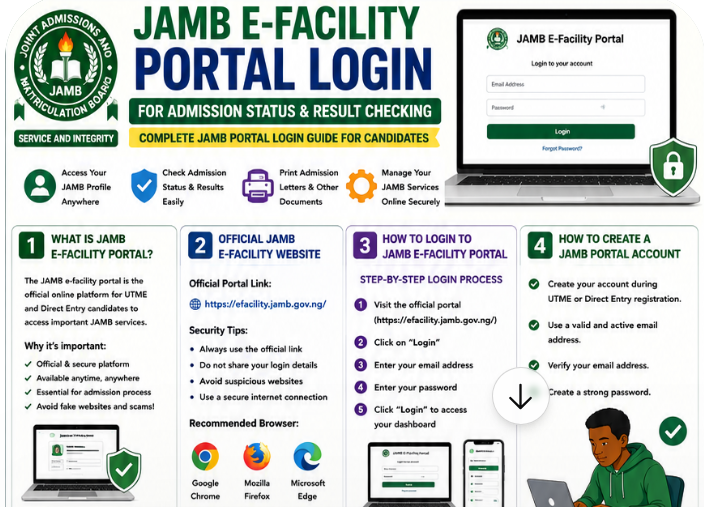
The JAMB e-Facility portal at efacility.jamb.gov.ng is your personal JAMB account. Every important step after registration happens there:
- printing your exam slip and result;
- checking your O’level upload;
- checking and accepting admission on CAPS;
- printing your admission letter;
- applying for a change of course or a correction of your data.
To log in, you need the email address and password on your JAMB profile, not just your registration number.
This guide is the complete walkthrough: how to log in on a phone or laptop, what every service on the dashboard does, how to recover a forgotten password or lost email, and how to keep your account safe from the “admission helpers” who target candidates every year. If the site won’t open at all, jump to our separate guide on JAMB portal not opening.
- Type efacility.jamb.gov.ng into your browser (Chrome works best).
- Enter the email address on your JAMB profile.
- Enter your password and click Login.
- On a phone, tick Desktop site in your browser menu so every menu shows.
- Forgot your password? Use the Forgot password link on the login page, or text
PASSWORD yo*******@*****le.comto 55019 or 66019 from your registered phone number.
In this guide:
- Which JAMB website is which?
- How to log in, step by step
- Logging in on a phone
- Every e-Facility service explained
- Which service you need at each stage
- Forgot password: three ways to reset it
- Lost access to your email
- Login errors and fixes
- Keep your JAMB account safe
- Paying for e-Facility services
- Getting official help
- FAQs
Which JAMB Website Is Which?
JAMB uses a few web addresses, and fake look-alike sites copy them every admission season. Here’s what each official one is for:
| Address | Use it for |
|---|---|
| efacility.jamb.gov.ng | Your candidate account: login, slips, O’level record, CAPS, admission letter, corrections and other services |
| jamb.gov.ng | Official announcements, news, press releases and general information |
| portal.jamb.gov.ng | Some JAMB services and older pages; candidate services are now mainly on e-Facility |
| support.jamb.gov.ng | JAMB’s official ticketing system for complaints and enquiries |
The golden rule: anything that doesn’t end in jamb.gov.ng isn’t JAMB. Never enter your password on another site, even if it uses JAMB’s logo and colours.
Watch out for typing mistakes in the address
Candidates often type the address with extra characters (for example, a colon or full stop at the end) or with “https //” missing its colon. Your browser may then send you to a search page full of unofficial links. Type efacility.jamb.gov.ng exactly, with nothing before or after, and bookmark it once it opens.
How to Log In to the JAMB e-Facility Portal, Step by Step
- Open your browser, preferably Chrome or Firefox, and type efacility.jamb.gov.ng in the address bar.
- Find the login form on the page.
- Enter your email address. Use the email you gave when you created your JAMB profile. Check it for typos; even one wrong letter will fail.
- Enter your password. Passwords are case-sensitive, so check Caps Lock.
- Click Login.
- Wait for the dashboard to load. You’ll see your name and the list of available services.
- Choose the service you need, for example Print Examination Slip or Check Admission Status.
- Log out when you’re finished, especially on a shared device.
Why your registration number won’t log you in
Many candidates try to log in with their JAMB registration number. The e-Facility portal uses your email and password to log you in. Your registration number is used inside the portal, for example on the Check Admission Status page or when printing slips.
Logging In on a Phone
Most candidates use phones, and that’s fine. But some e-Facility pages, especially CAPS, hide important menus in mobile view. Here’s how to avoid that:
| Phone | How to switch to Desktop site |
|---|---|
| Android (Chrome) | Tap the three dots at the top right → tick Desktop site |
| iPhone (Safari) | Tap the “aA” icon in the address bar → Request Desktop Website |
| iPhone (Chrome) | Tap the three dots → Request Desktop Site |
Other phone tips:
- Use Chrome rather than mini or “lite” browsers, which can break forms and downloads.
- Turn off data saver modes while using the portal.
- To print, save the page as a PDF and print it later from a laptop or business centre.
- Zoom out if the page looks too wide; most buttons are still there.
Every JAMB e-Facility Service Explained
The services you’ll see depend on your stage (registration, exam, results or admission), and labels can change from year to year. These are the services candidates use most:
| Service | What it does | When you need it | Guide |
|---|---|---|---|
| Print registration slip | Prints the slip showing your registration details | After registration | — |
| Print examination slip | Shows your exam date, time, centre and seat details | Before the UTME, when JAMB opens printing | Can’t print your JAMB slip? |
| Check UTME result / print result slip | Shows or prints your UTME result | After results are released | JAMB result slips |
| Check Admission Status (CAPS) | Shows your admission status, offers and transfers | Admission season | How to know if JAMB has given you admission |
| Print admission letter | Prints your JAMB admission letter | After accepting admission on CAPS | Admission letter steps |
| Change of course / institution | Changes your choices after registration | Before your institution processes you | Change of course or institution |
| Correction of data | Corrects details such as your name or date of birth | As soon as you notice an error | — |
| O’level result record | Shows the O’level results uploaded to your profile | After your WAEC/NECO upload | O’level upload |
| Matriculation list check | Confirms you’re on the official matriculation list | After admission and registration at your institution | — |
Many services are paid. The portal shows the amount before you pay, so don’t rely on figures quoted elsewhere.
Things you can’t do on the portal yourself
- Upload a NECO or NABTEB result by yourself. These are still uploaded at a JAMB-accredited CBT centre. (WAEC results are different for 2026 UTME candidates: see the next section.)
- Change your registered phone number or email without verification. These need official support.
- “Upgrade” your score. No such service exists, so anyone selling one is a scammer.
New in 2026: online O’level upload for WAEC results
In August 2026, JAMB introduced an online way for 2026 UTME candidates to verify and upload their O’level results without visiting a CBT centre. It started with WAEC results. As JAMB described it:
- Obtain a result verification code from the designated result verification platform (you enter your NIN, the number of sittings, the examination body and your exam details, then pay).
- Start the upload by sending
VERIFYfollowed by the code to 55019 or 66019, as JAMB’s announcement described. - Log in to e-Facility and select 2026 UTME O’Level Upload.
- Enter the verification code. If you have two sittings, both verified results appear.
- Select between five and nine subjects (no subject twice), then click Apply the O’Level Results.
Your result is checked directly against the examination body’s records before it’s added to your profile, so typing errors at centres are avoided. JAMB’s announcements named WAEC for the first phase. NECO and NABTEB candidates should keep using an accredited CBT centre unless JAMB announces otherwise. Check jamb.gov.ng for the latest instructions before you pay for anything.
Don’t Have a JAMB Profile Yet? Start Here
You can only log in to e-Facility after you’ve created a JAMB profile. The profile is linked to your National Identification Number (NIN), and creating it starts with a profile code sent to your phone.
- Get your NIN from NIMC if you don’t have one. JAMB uses it to identify you.
- Request a profile code by SMS from your own phone line, following JAMB’s current instructions. In recent years, candidates sent “NIN” followed by their 11-digit NIN to 55019 or 66019.
- Receive your profile code, a short code sent by SMS. Keep it.
- Create your profile on e-Facility with the profile code, your email and a password. See how to create a JAMB profile.
- Buy your registration ePIN through the e-Facility portal or an approved payment channel.
- Register at an accredited CBT centre with your ePIN. See how to register for JAMB UTME or Direct Entry.
Having trouble with the code? See how to generate your JAMB profile code. The phone number you use becomes your registered number, so use a line you’ll keep for at least a year.
Choosing the email for your profile
The email you choose now is the email you’ll log in with for the whole admission cycle, and possibly for years afterwards if you need your result slip again. Choose it carefully:
- Create it yourself, on your own phone, and write down its password.
- Use a simple, professional address, such as your name and a number.
- Don’t use a parent’s, sibling’s or school’s email that someone else controls.
- Log in to it once a month so the provider doesn’t close it for inactivity.
Which Service You Need at Each Stage
| Stage | What to do on e-Facility |
|---|---|
| Right after registration | Log in, confirm your details, print your registration slip, and save your login details safely |
| Before the exam | Print your examination slip when JAMB announces printing; check your centre and time. See how to check your exam centre. |
| After the exam | Check your result; print your result slip if your institution requires it. See checking your JAMB result. |
| After WAEC/NECO results | Upload your O’level (online for WAEC results, or at a CBT centre), then confirm the record on your profile |
| Admission season | Check CAPS regularly; accept your offer; print your admission letter |
| After resumption | Check the matriculation list when advised |
Correcting Your Details on e-Facility
Errors in your JAMB record, such as a misspelled name or a wrong date of birth, can cause problems at admission and clearance if they don’t match your O’level result and other documents. JAMB provides correction services through e-Facility, usually as paid services with set windows.
| Error | What to do | Tip |
|---|---|---|
| Name spelling, or order of names | Use JAMB’s correction-of-name service on e-Facility | Match the spelling on your O’level result and birth certificate |
| Date of birth | Use JAMB’s correction-of-date-of-birth service | Make sure your NIN record is correct first; JAMB data is linked to NIN |
| Wrong course or institution choice | Use the change-of-course or change-of-institution service | Don’t change while an institution is processing you unless it says you can |
| O’level grades or subjects uploaded wrongly | Return to an accredited CBT centre to correct the upload | Check the result printout and upload carefully before submitting |
| Wrong state or LGA | Contact JAMB through official support | Have your local government identification ready |
If your NECO or WAEC record is the one with the error, fix it with the examination body too. See correcting a wrong date of birth on a NECO certificate.
Printing From e-Facility
You’ll print several documents from the portal: your examination slip, result slip and admission letter. To get clean, usable printouts:
- Open the document in the portal and wait for it to load fully, including your photo and any QR code.
- Use your browser’s Print option (Ctrl+P on a computer, or Share → Print on a phone).
- Choose “Save as PDF” if you’re not near a printer, then print the PDF later at a business centre.
- Check the printout: your photo, name, registration number and all details should be clear.
- Print extra copies, and keep the PDF in your email or cloud storage.
If the slip shows a blank page or no photo, see why you can’t print your JAMB slip.
Using e-Facility at a Cyber Café Safely
Many candidates rely on cafés and business centres. That’s fine if you stay in control:
- Type your own email and password, or watch closely as the operator does.
- Don’t let the café keep your details “so they can check for you”. That’s how many accounts are lost or misused.
- Make sure you’re on efacility.jamb.gov.ng, not a look-alike site or a café’s own “JAMB service” page.
- Log out and close the browser before you leave.
- Change your password later from your own phone if you shared it.
For Parents: How to Help Without Taking Over
- Help your child create their own email and keep a written record of login details at home.
- Remind them of key dates: slip printing, results, O’level upload and admission season.
- Check CAPS together during admission season, and read every offer carefully before accepting.
- Never pay “agents” who promise admission or score changes. Use only official channels.
See also how parents can help their children prepare for JAMB.
Forgot Your JAMB Password? Three Ways to Reset It
Method 1: The Forgot password link
- Go to efacility.jamb.gov.ng and click Forgot password on the login form.
- Enter the email address on your JAMB profile.
- Open your email and click the reset link. Check your spam or junk folder if it doesn’t arrive.
- Create a new password and log in.
Method 2: By SMS
From the phone number you registered with JAMB, send:
PASSWORD yo*******@*****le.com to 55019 or 66019
Replace the example with your actual JAMB email. Standard SMS charges apply. This only works from your registered number.
Method 3: Official support
If neither works, raise a ticket at support.jamb.gov.ng or visit a JAMB office with your registration details. See how to contact JAMB support.
Tips for a password you won’t lose
- Use something you can remember but others can’t guess: not your name, date of birth or “12345”.
- Write it down in a notebook you keep at home, along with your JAMB email and registration number.
- Don’t let a café operator set your password for you.
Lost Access to Your Email?
This is a serious problem, because your email is your login and where reset links go. It often happens when a cyber café created the email for you, or you forgot the email password.
- Try to recover the email account first. Use your email provider’s recovery options (for example, “Forgot password” on Gmail), with your phone number.
- If you can’t recover it, contact JAMB through support.jamb.gov.ng, or visit a JAMB office with your registration number and identification. JAMB will advise on its verification process.
- Don’t create a new JAMB profile to get around the problem. Duplicate profiles cause bigger problems later.
“Why is my email not working on my JAMB portal?”
Usually because of a typo (for example gmail.co instead of gmail.com), extra spaces, using a different email from the one on your profile, or a café-created email you’ve forgotten. Try any other emails you’ve used, and check your registration slip, which may show your email.
Login Errors and Fixes
| Problem | Likely cause | Fix |
|---|---|---|
| “Invalid email or password” | Typo, wrong email, Caps Lock | Retype carefully; reset your password if needed |
| Page won’t load or keeps spinning | Heavy traffic or a connection problem | Try again at a quiet time; switch network or browser. See JAMB portal not opening. |
| Login works but menus are missing | Mobile view | Turn on Desktop site |
| Login loops back to the login page | Browser cookies or cache | Clear the cache, allow cookies, or use an incognito window |
| Reset email never arrives | Spam folder, or the wrong email address | Check spam; try the SMS method |
| CAPS says “Cannot access CAPS server now” | CAPS is busy | Try later. See CAPS login errors. |
| “You are not eligible” on CAPS | Wrong year selected | Select the current exam year |
Why is JAMB e-Facility not working?
Most often because of heavy traffic at peak times (slip printing, result release, admission), a browser issue, or a weak connection. Occasionally JAMB carries out maintenance. Try early morning or late night, use Chrome with a cleared cache, and check jamb.gov.ng for announcements. Full fixes: JAMB portal not opening.
JAMB Documents You’ll Print: What’s the Difference?
Candidates often confuse the documents available on e-Facility. Here’s what each one is, and who asks for it:
| Document | What it shows | Who asks for it |
|---|---|---|
| Registration slip | Your registration details, subjects and choices | Mainly for your own records |
| Examination slip | Your exam date, time, centre and session | You need it on exam day. See what to carry on JAMB exam day. |
| Result notification / result slip | Your UTME scores by subject and total | Post-UTME screening and some admission forms |
| Original result slip | The official printable version of your UTME result | Institutions at clearance; often a paid print |
| Admission letter | Confirmation of your admission as approved on CAPS | Your institution at clearance and registration |
Common Myths About the JAMB Portal
| Myth | Reality |
|---|---|
| “There’s a special login for 2026.” | You use the same e-Facility login each time. Only the services available change through the year. |
| “Agents can log in for you and ‘push’ your admission.” | Admission is processed by institutions and approved by JAMB on CAPS. Nobody can push it for a fee. |
| “You can upgrade your score through the portal.” | No such service exists. Score-upgrade offers are scams. |
| “If the portal is slow, your account has a problem.” | Slowness is usually heavy traffic. Try again at a quiet time. |
| “You can create a new profile if you forget your password.” | Don’t. Reset your password instead; duplicate profiles cause serious problems. |
| “CBT centres can access your account with your password.” | JAMB has said centres must not request or accept candidates’ passwords. |
When Each e-Facility Service Is Busiest
JAMB opens and closes some services at set times and announces them on jamb.gov.ng. The portal is busiest in the days around:
- Examination slip printing, usually about a week before the UTME;
- Result release, shortly after the exam;
- The O’level upload rush, after WAEC and NECO results;
- Admission season, when CAPS traffic peaks;
- Change-of-course deadlines, near the end of each window.
If you need something during these periods, try early in the morning, and don’t leave anything to the last day.
Keep Your JAMB Account Safe
Your e-Facility account controls your admission. If someone else gets in, they could see your details or even respond to your admission offer. Protect it:
- Use an email you own and check regularly, not one created by a cyber café.
- Never share your password with agents, “admission helpers” or CBT centre staff. JAMB has said no centre is allowed to request or accept a candidate’s password.
- Log out after using a shared computer, and don’t let the browser save your password there.
- Type the address yourself instead of clicking links in messages.
- Ignore messages claiming problems with your record that ask you to call or pay someone. JAMB has warned about fraudulent messages imitating its short codes.
- Keep your registered phone number active. You need it for SMS services and password resets.
Login Troubleshooting Checklist
Work through this list before you contact support. Most login problems are solved by one of these:
- ☐ I typed efacility.jamb.gov.ng exactly, with nothing extra before or after.
- ☐ I’m using the email on my JAMB profile, checked for typos (gmail.com, not gmail.co).
- ☐ Caps Lock is off, and I’ve retyped my password slowly.
- ☐ I’ve tried Forgot password and checked my spam folder.
- ☐ I’ve tried the SMS reset from my registered phone number.
- ☐ I’m using Chrome or Firefox, not a mini browser.
- ☐ I’ve cleared my browser cache or tried an incognito window.
- ☐ I’ve turned on Desktop site on my phone.
- ☐ I’ve tried another network, or a quieter time of day.
- ☐ I’ve checked jamb.gov.ng for any announcement about maintenance.
If all of these fail, raise one clear ticket on support.jamb.gov.ng. Include your registration number, profile email, phone number, a description of what happens and a screenshot.
What to Do Right After Your First Successful Login
- Check your biodata: your name, date of birth, state and LGA. Fix errors early.
- Check your institution and course choices, and make sure your subject combination matches the course.
- Bookmark the portal in your browser.
- Write down your login details on the account card below.
- Note upcoming dates from jamb.gov.ng, such as slip printing and result release.
Paying for e-Facility Services
Several services, such as printing the admission letter, change of course or institution, and data correction, are paid. To pay safely:
- Start the payment from within your e-Facility dashboard, so it’s linked to your profile.
- Note the payment reference and save the receipt.
- Don’t pay into personal accounts, even if someone claims to be a JAMB staff member.
- If you’ve paid but the service isn’t working, wait a few hours, log out and in again, and if it still fails, raise a ticket with the payment reference.
Getting Official Help
| Channel | Best for |
|---|---|
| support.jamb.gov.ng | Written tickets: login, email, payments and records |
| Live chat on jamb.gov.ng | Quick questions during working hours |
| JAMB state offices | Problems that need identity checks, such as lost email access |
| Accredited CBT centres | O’level uploads and some in-person services |
See how to contact JAMB support for details and tips on writing a ticket that gets answered.
Your JAMB Account Details Card
Copy this into a notebook and keep it at home. Candidates who keep these details safe avoid most portal problems:
JAMB profile email: ____________________
Email password (keep private): ____________________
JAMB e-Facility password (keep private): ____________________
Registered phone number: ____________________
Exam year: ______ · Institution/course choice: ____________________
Frequently Asked Questions
What is efacility.jamb.gov.ng?
It’s JAMB’s official candidate portal, where you log in to print slips, check results, check and accept admission on CAPS, print your admission letter and request corrections.
How do I log in to the JAMB e-Facility portal?
Go to efacility.jamb.gov.ng and enter the email and password on your JAMB profile, then click Login.
Can I log in with my registration number?
No. Log in with your email and password. Your registration number is used inside the portal for certain services.
How do I reset my JAMB password?
Use Forgot password on the login page, or text PASSWORD yo*******@*****le.com to 55019 or 66019 from your registered number.
Why is JAMB e-Facility not working?
Usually because of heavy traffic, browser settings or your connection. Try a quieter time, Chrome with a cleared cache, or another network.
Can I use the JAMB portal on my phone?
Yes. Turn on Desktop site if menus or buttons are missing.
I forgot the email I used for JAMB. What should I do?
Check your registration slip and any emails you might have used. If you still can’t find it, contact JAMB through support.jamb.gov.ng or visit a JAMB office.
Is portal.jamb.gov.ng still used?
Candidate services are mainly on efacility.jamb.gov.ng. Follow links from jamb.gov.ng if you’re unsure.
Can I change the email on my JAMB profile?
Contact JAMB through official support. It will verify your identity before making changes.
Is the JAMB e-Facility portal open for 2026?
Yes. The portal runs year-round. Specific services, such as slip printing or change of course, open and close at times JAMB announces.
Do I need to pay to log in?
No. Logging in is free. Some services inside the portal are paid.
How long does a JAMB password reset take?
The reset email or SMS usually arrives within minutes, but it can take longer at busy times. Check your spam folder, and wait a while before requesting another, as repeated requests can make it confusing to know which link is current.
Can I have two JAMB profiles?
No. Your profile is linked to your NIN. Creating another to get around a login problem causes problems later; recover your existing account instead.
Will I need the e-Facility portal after I’ve been admitted?
Yes. You may need to reprint your admission letter or result slip for clearance, check the matriculation list, or request documents years later for jobs or further studies. Keep your login details safe even after you resume at school.
Does the JAMB portal work at night?
Yes, and late night or early morning is often the fastest time to use it, because traffic is lower. If you need to print a slip or check CAPS during a busy week, set an alarm and try before 6 am, when the portal is usually quickest.
Why does efacility.jamb.gov.ng take me to a different page?
Check the address carefully. Extra characters, missing letters or clicking a sponsored link can take you elsewhere. Type efacility.jamb.gov.ng exactly and bookmark it once it opens.
How do I check my JAMB result on e-Facility?
Log in, then select the result-checking or result-printing service on your dashboard. See how to check your JAMB result for the full steps, including the SMS option.
Can someone else log in to my JAMB account for me?
Only if you give them your password, and you shouldn’t. If you need help, sit with a trusted person and log in yourself.
What’s the JAMB support email?
JAMB handles enquiries mainly through its ticketing system at support.jamb.gov.ng, which gives you a ticket number to follow up. Use that instead of emails from unofficial addresses.
What should I do if someone else knows my JAMB password?
Change it immediately using Forgot password or SMS, and check your CAPS status. If you notice any changes you didn’t make, raise a ticket with JAMB straight away.
Related guides: JAMB portal not opening · CAPS login errors · JAMB admission status · Contact JAMB support
